Creating, approving and completing work orders
Who: Admin, Manager and Shop create and complete work orders; technicians record labor.
The work order screen (4.8.28) #
Opening a work order shows the whole job on one screen. More › Classic view opens the older side panel with every tab.
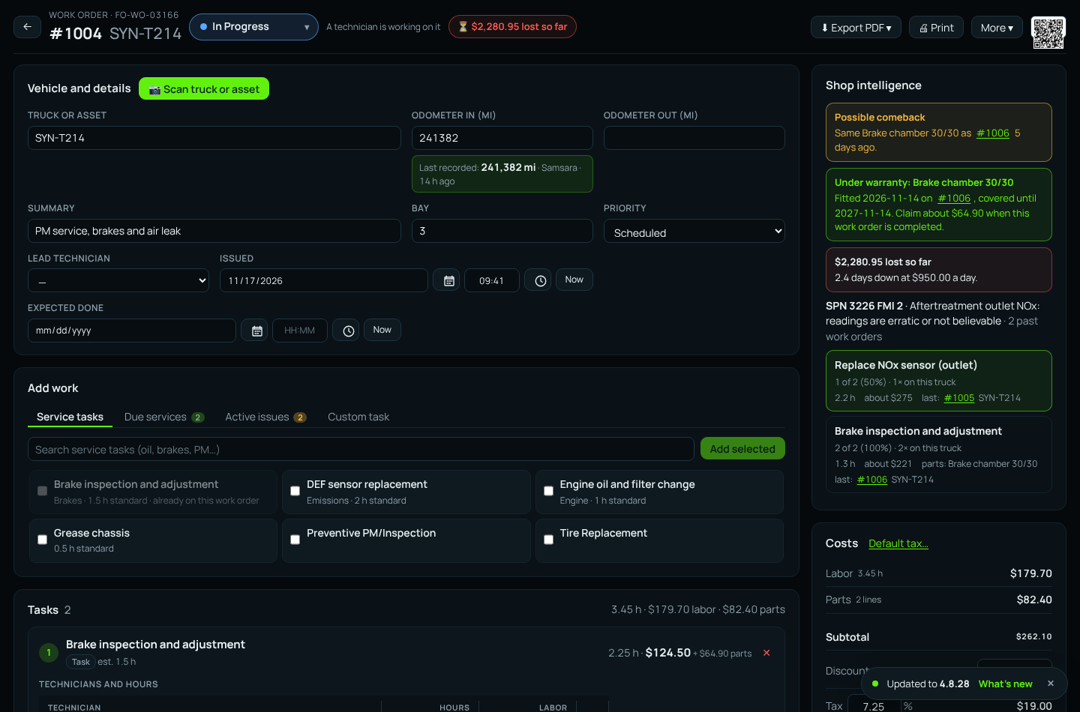
- Header: the number and truck, the status button (click, choose the status; Completed asks for the odometer out), Export PDF (color or printer friendly), Print, More and the work order's QR code.
- Vehicle and details: scan or type the truck; Odometer in shows the last recorded reading underneath (Samsara first) with use it.
- Add work: Service tasks, Due services (past due and due), Active issues (add, or Clear with a note) and Custom task.
- Tasks: for each task add technicians and the hours each spent, parts, notes, comments, photos and PDFs.
- Outside vendor service: switch it on to enter the vendor, invoice and PO numbers, outside charges and attach the invoice PDF.
- Costs: labor, parts, outside vendor, subtotal, discount, tax and grand total. Switch on the company's default tax with one click; admins and managers set it with Default tax….
- Follow-ups and alerts: Follow-up timer reminds the shop to come back and check the repair; Alert if a fault code returns alerts the shop if that code comes back on the truck.
To start a new work order, select New work order, then Scan truck or asset or search for the unit. The truck's last recorded miles show in large type with the Odometer in already filled in; then select Create work order.
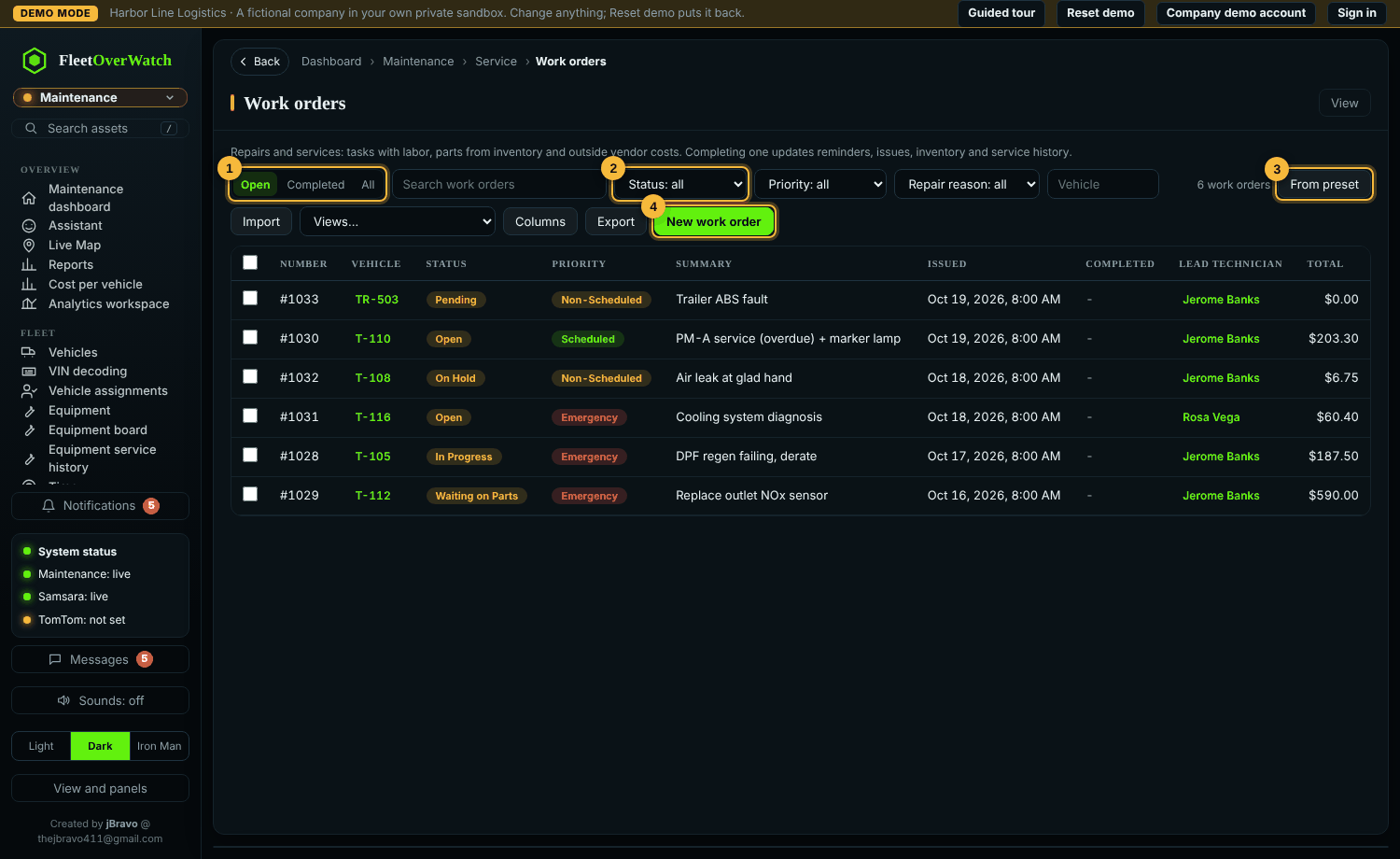
The status is a dropdown of the statuses Fleet OverWatch tracks: Open, Pending, In Progress, Waiting on Parts, On Hold, Completed and Cancelled.
Shop intelligence and the shop floor (4.8.29) #
- Shop intelligence (side of the work order): what fixed this truck's fault codes before, parts still under warranty, a possible comeback, and what the downtime has cost so far.
- Bay: put the work order in a bay to show it on the Bay board.
- Start my time: each task has Start, Pause and Stop for the technician signed in. Scanning the work order's QR code offers to start your time on a task.
- Voice notes: select the microphone beside the comment box and speak.
- No connection: keep working; changes are sent when the connection is back.
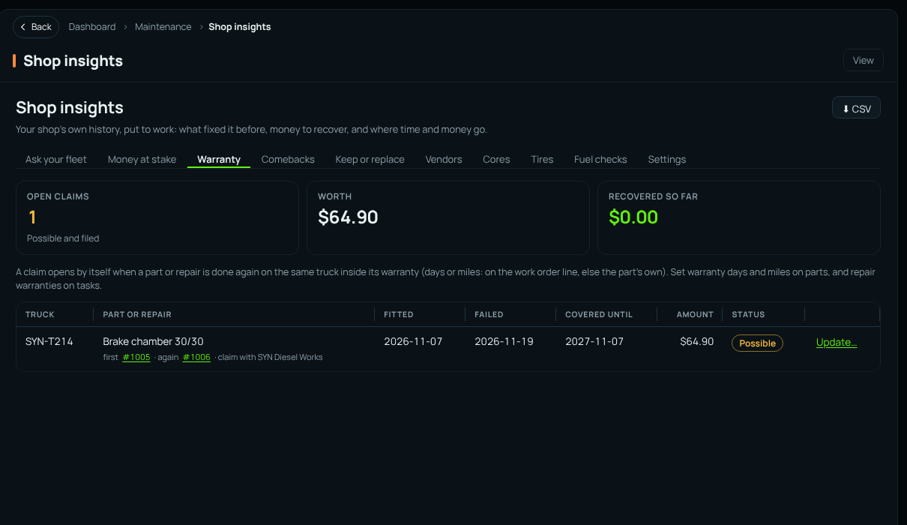
See Maintenance › Shop insights for warranty claims, comebacks, money at stake, keep or replace, vendor scorecards, cores, tires, fuel checks and Ask your fleet.
Today and the schedule board (4.9.0) #
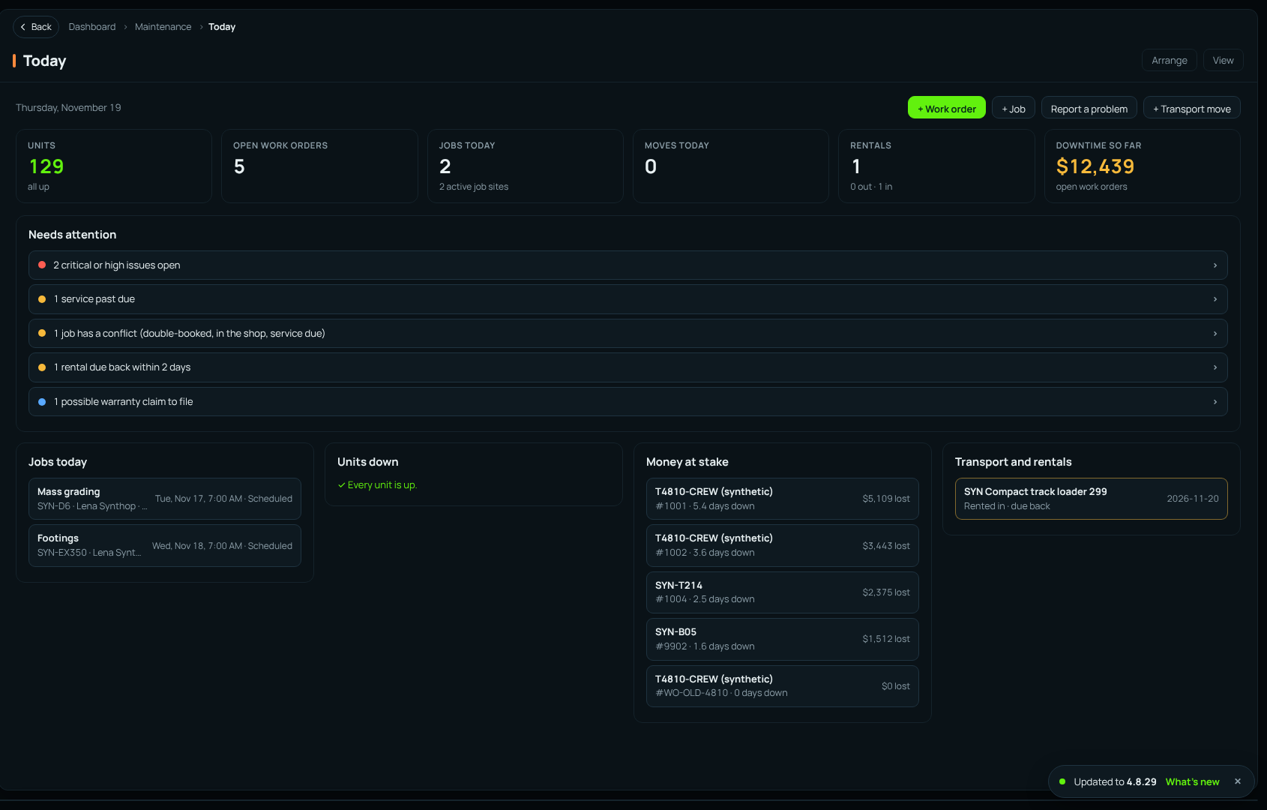
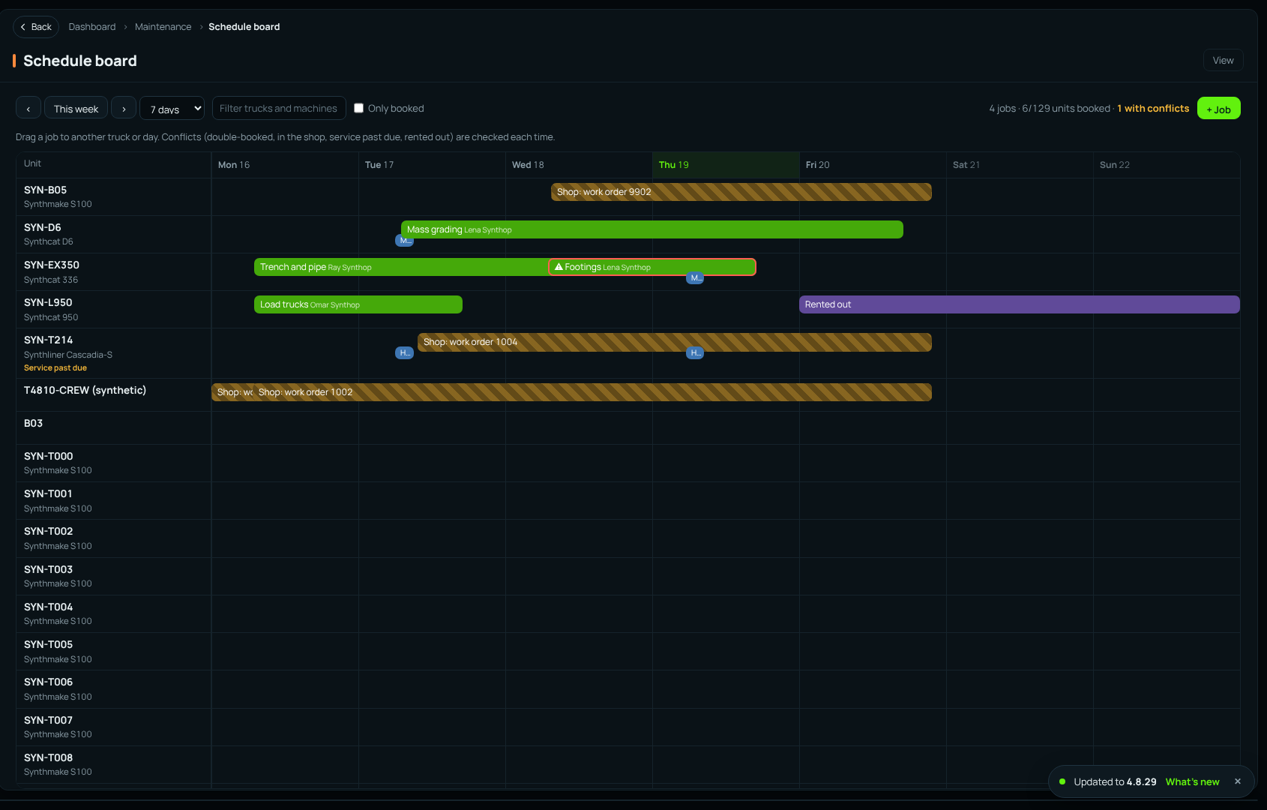
Today is the office's home page: what needs attention, today's jobs and transport moves, units down and what open work orders are costing. The Schedule board shows every truck and machine by day; drag a job to another unit or day and conflicts are checked.
Create a work order #
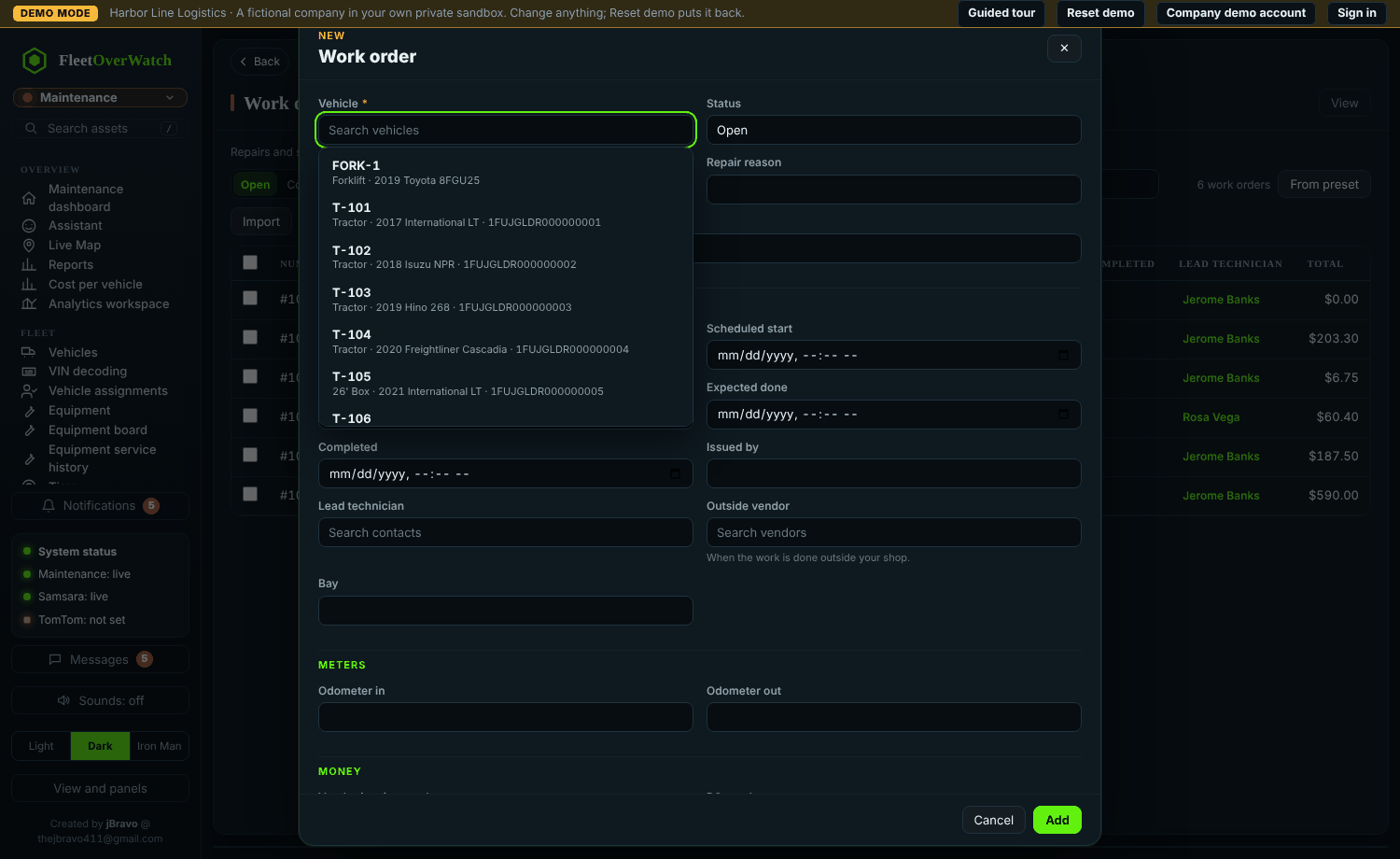
- Select New work order (or From preset, or New work order on a vehicle, issue or reminder).
- Choose the vehicle, priority (Scheduled, Non-Scheduled, Emergency) and repair reason.
- Write the complaint (what is wrong), assign a technician and a bay if you use them.
- Under Issues and inspection defects to fix, tick the problems this job fixes. The list shows the vehicle's open issues and its unresolved inspection (DVIR) defects; an issue already on another open work order is greyed out.
- Save. The ticked issues and defects are put on the work order (a defect becomes an issue the first time).
Add labor and parts #
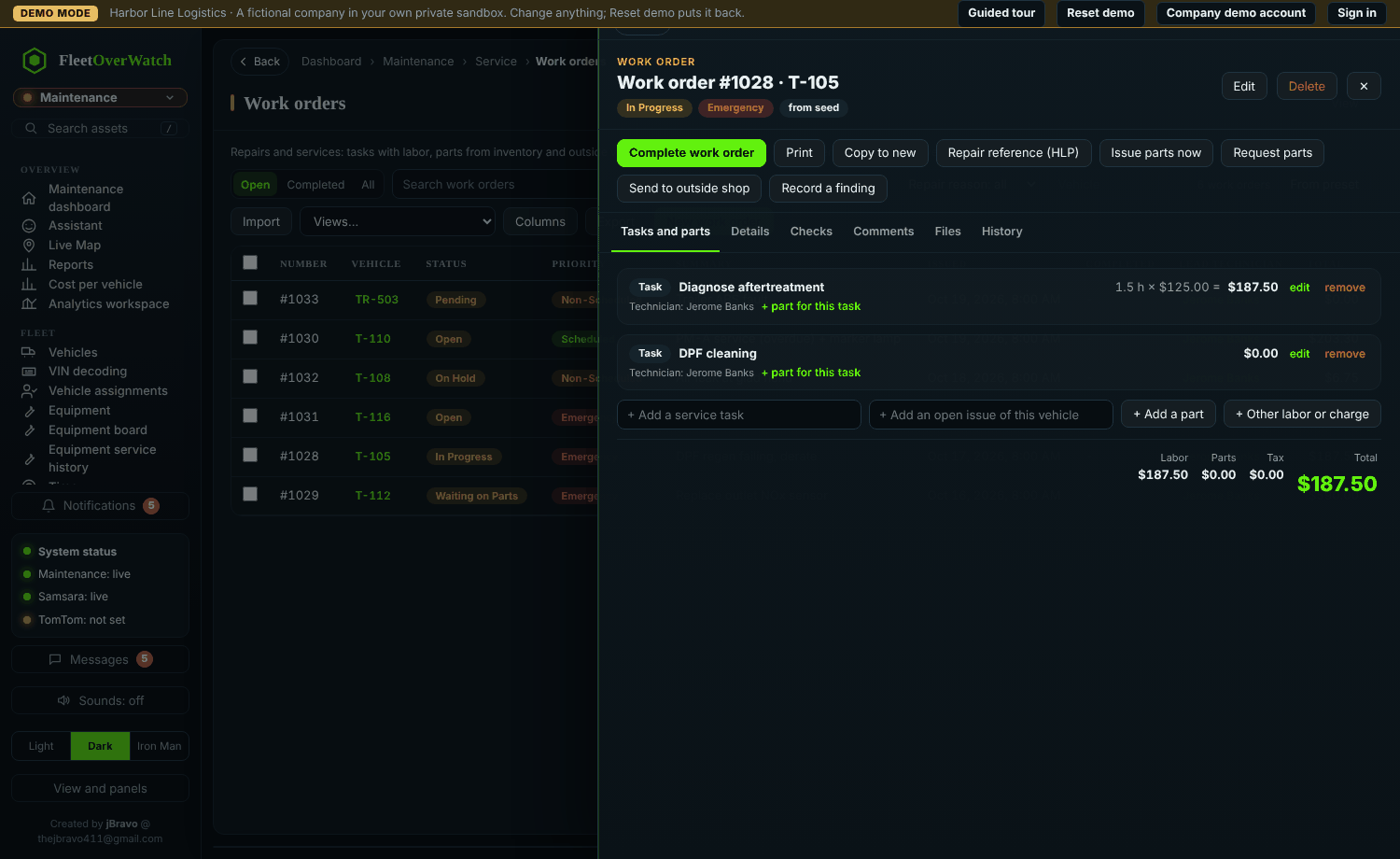
- Open the work order. On its Tasks and parts tab, use Add a service task, + Issues and inspection defects… (tick the vehicle's open issues and unresolved inspection defects) or Other labor or charge; each line shows the technician, hours and rate. Technicians enter actual hours with edit.
- Use Add a part (or part for this task under a line) to add parts from inventory with the location, quantity and unit cost. Saving takes them out of that location's stock count at once, the way Fleetio does (see Work orders and inventory below).
- If your company chose "when the work order is completed", parts are reserved instead, and Issue parts now takes them out early if you hand them out before completion. If a part is short, Request parts starts a requisition; set the status Waiting on Parts. Send to outside shop creates a vendor repair request.
Approval #
Work orders whose total is above the approval limit (Admin > System settings, workorders.approval_limit) need approval by a manager before completion. The approval field shows Pending until then.
Complete it #
- Fill in cause and correction, the odometer out, and the outcome (repaired, temporary repair, no fault found...).
- For critical repairs, tick Quality check / post-repair inspection done (when the setting requires it).
- Select Complete work order (or set the status Completed and save).
Expected result: parts still reserved (policy when completed) leave inventory, service history is written, reminders for its tasks reset, every issue on it is resolved, their inspection defects are marked fixed, an inspection report with no defect left open is signed off, and the odometer is recorded.
Return to service #
Completing the work does not put the vehicle back to Active by itself. An authorized person ticks Returned to service on the work order (or sets the vehicle Active) once the unit is safe to drive.
If this does not work #
| Message | Meaning |
|---|---|
| "Parts are missing" | a part is short; receive it or remove the line |
| "Needs approval" | the total is above the limit; a manager approves it |
| "Quality check required" | a critical repair needs the QC tick |
Job timers (4.3) #
On the work order's Time tab (or Start my timer at the top): choose the task (or the whole work order) and Start timer. Pause, Resume and Stop as you work; the clock keeps counting while the page is closed. Each technician has their own entries, so several people can time the same job. Managers and shop leads can start a timer for another technician, and mark time as not billable.
When a timer stops, its hours go on the task's labor at the technician's labor rate (people › Labor rate per hour), or on a Labor (job timers) line when no task was chosen. Hours typed in by hand are kept; the Time tab offers Use the timer hours if you want them instead. Administrators and managers Correct recorded time (start and stop, or hours, rate, billable) with a reason that stays in the history and the audit log. Completing the work order stops timers still running.
Work orders and inventory (4.3.1, as Fleetio) #
Work orders and inventory stay in step: the stock count always matches what the work orders say they used.
Add a part. In the work order form (New work order or Edit), use + Add part from inventory in Parts from inventory. On a new work order, the parts are added when you save it. On the work order's Tasks and parts tab, the same button (or + part from inventory for this task) is there too, also on completed work orders. Either way it opens the parts search: type or scan any number (internal, manufacturer, OEM, supplier, barcode), the name or the manufacturer. Each part shows how many are on hand at each location, its unit cost and whether it fits this vehicle. Choose:
- Location: where the part comes from; the quantity on hand is shown in brackets (red when zero or below).
- Quantity.
- Unit cost: the part's unit cost, which you can change for this work order.
- Service task: the task the part belongs to, or Other parts.
- No inventory adjustment: records the part on the work order without changing the stock count (for example a part the customer brought).
The dialog shows what saving will do ("Saving takes 3 out of Main shop: 8 → 5 on hand").
What changes the stock count. Each of these is an inventory transaction with the work order number, who and when (part › Stock tab):
| On the work order | Stock count |
|---|---|
| Part saved | taken out of the chosen location at once |
| Quantity raised or lowered (edit, or the ordinary editor) | only the difference goes out or comes back |
| Location changed | everything back to the old location, out of the new one |
| Part removed (✕), or return with a reason | back on the shelf |
| Work order cancelled / reopened | back / out again |
| Work order deleted | everything back |
| Work order completed | nothing more (it already came out) |
Not enough at the location. The part is still added, the count goes below zero (shown in red) and it is recorded in the audit log, as in Fleetio. An administrator can choose Refuse it instead in Admin › Required fields and policies.
Part page. The part's Work orders tab lists every work order it is on: vehicle, task, date, quantity, location, cost, and whether it is out of inventory, reserved or not adjusted.
Received straight to a work order. In Receive… on a purchase order, set To on a line to an open work order: the parts are received into the order's location and put on that work order at the purchase price (both transactions are kept).
When the parts leave stock. Administrators choose this in Admin › Required fields and policies: When it is saved on the work order (as Fleetio), the default from 4.3.1, or When the work order is completed (reserved until then). After switching to when saved, the card lists part lines on open work orders that are not taken out yet, with Take them out now.
Imports and the Fleetio sync never move stock: their quantities already include what was used.
Photos, driver care and meters (4.3) #
- Photos and PDFs (4.3.8):
- In the work order form, under Photos and PDFs, use 📷 Add photo (on a phone the camera opens) and 📄 Upload PDF (estimate, invoice, diagnostic report, inspection, warranty). On a new work order they are uploaded when you save it.
- On the work order itself, the 📷 Add photo and 📄 Upload PDF buttons do the same. PDFs are on its Files tab.
- Photos tab: add pictures by category (before repair, diagnostic evidence, parts replaced, repair in progress, completed repair, damage) with a caption; on a phone it opens the camera. Who added each one and when is recorded.
- Driver and vehicle care: cleanliness, care notes, the driver responsible, Driver damage (adds the Driver Damage label for the Safety damage page) and Operator error.
- Odometer: type it in miles or kilometres (kilometres are converted; what you typed is kept); engine hours in and out. The form warns when a reading is lower than the last one or much higher than expected.
Scan parts onto a work order (4.4.3) #
Open the work order and select 📷 Scan parts (the button at the top, or the tab).
- Scan with 📷 Camera or a handheld (USB or Bluetooth) scanner, or type the number and press Enter. Set Quantity first if it is not 1.
- A barcode, UPC, part number, alternate number or label code puts your part on the work order with its price. Scanning it again adds one more to the same line.
- A manufacturer's QR code (Grote EZ-Find and other packaging codes that hold a web address) is read for the part number, name, maker and picture: your part with that number is used, or a new part is made with all of it filled in and its picture saved.
- ✓ Done — show the parts returns to Tasks and parts.
Expected result: each scan is listed with its picture, number, name, quantity and price.
Something here out of date or unclear? Tell your administrator and mention “work-orders” and version 4.9.2.