Company accounts
A company account is a complete Fleet OverWatch for one company, hosted on this server. It has its own users and roles, its own settings and keys, and its own records. It never sees this server's own data or sign-ins, and other companies never see yours.
Create the account #
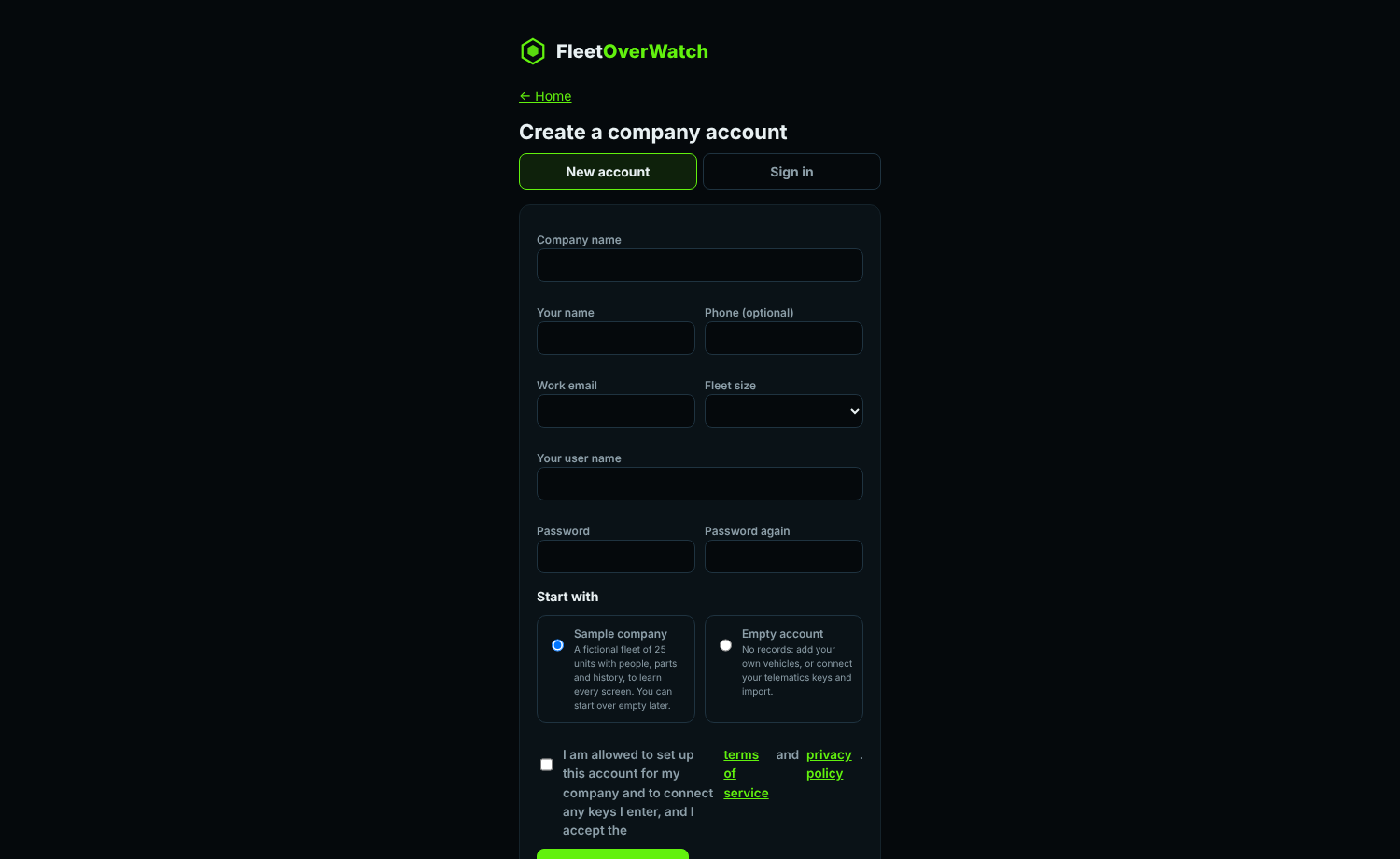
- Select Start your company on the home page (or open
signup.php). - Enter the company name, your name, a work email, a company code if you want to choose one (3 to 64 letters, numbers and symbols, no spaces; leave it empty and one is made from your company name), your user name and a password (10 or more characters with letters and numbers).
- Under Start with, choose:
- Sample company: a fictional fleet of 25 units with people, parts and history, to learn every screen.
- Empty account: no records; add your own vehicles, import them, or connect your telematics keys.
- Accept the terms and select Create the account.
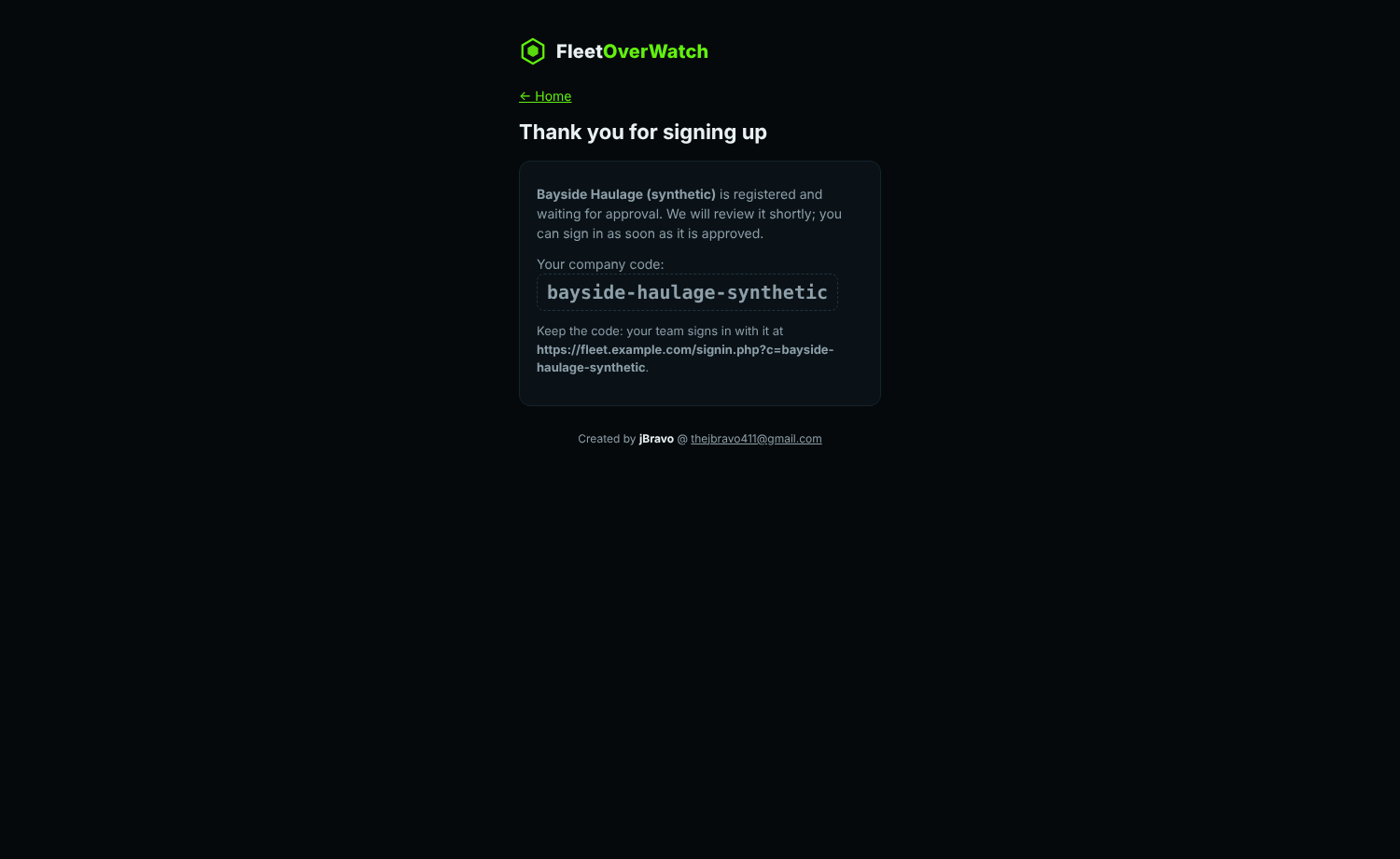
Expected result: a page shows your company code and the address where your staff sign in. You are the account's administrator. When the service reviews new accounts first, the page says the account is waiting for approval; you can sign in as soon as it is approved.
Sign in #
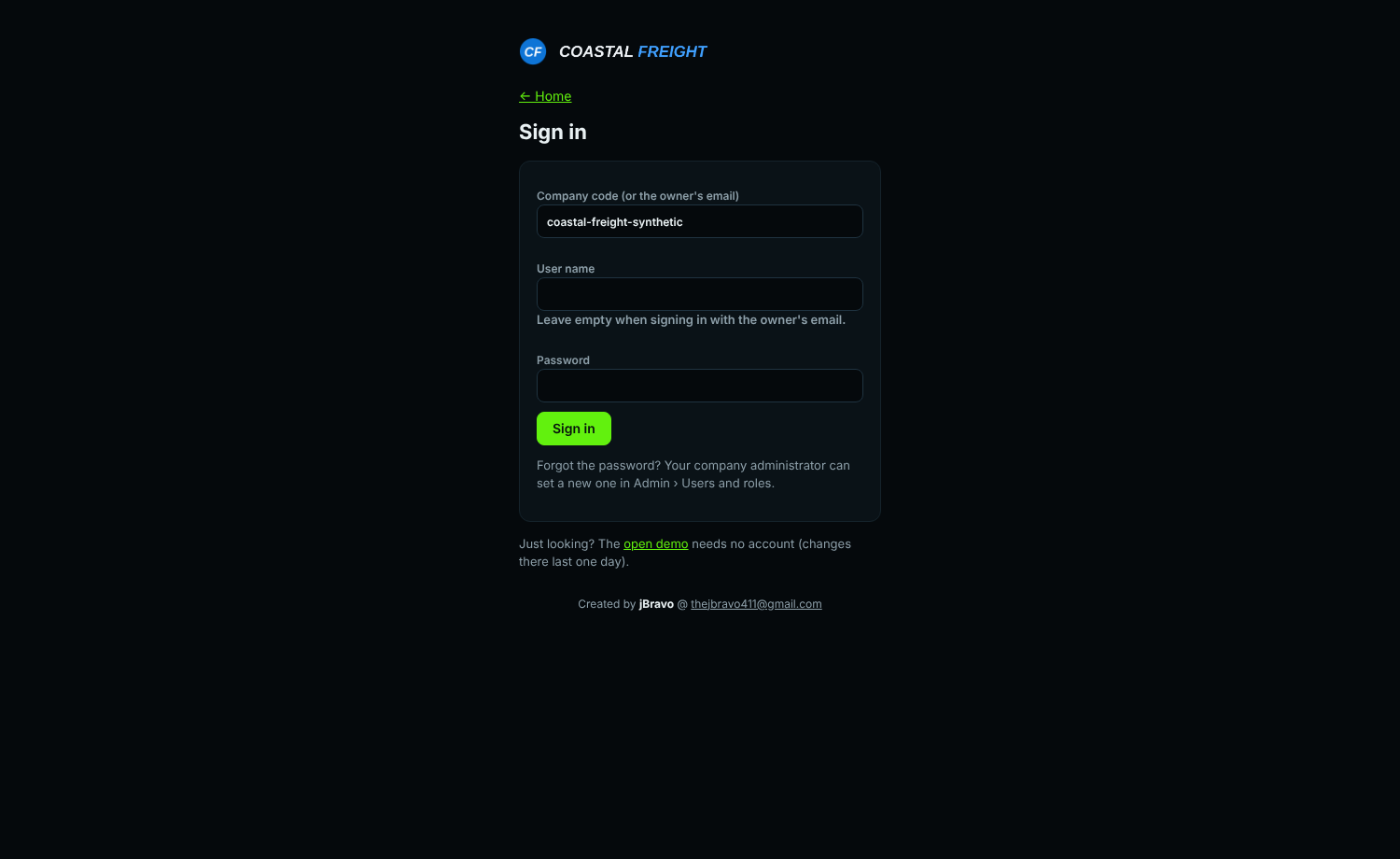
Open Sign in on the home page (signin.php) and enter the company code (any letter case), your user name and password. Your company's own sign-in page (signin.php?c=your-address-name, or https://your-address-name.fleetoverwatch.com/ when the service offers addresses) shows your name and logo and does not ask for the code.
When two-step sign-in is on for you, the next page asks for the 6-digit code from your authenticator app (or one of your recovery codes).
Locked out, or the code is lost #
The service's administrators can reset a company's sign-in for you:
- a new company code;
- a new password for one person, all the administrators, or everyone.
Ask them through the website's contact form. They give you the new details in person or by phone. You choose your own password when you next sign in.
The account bar #
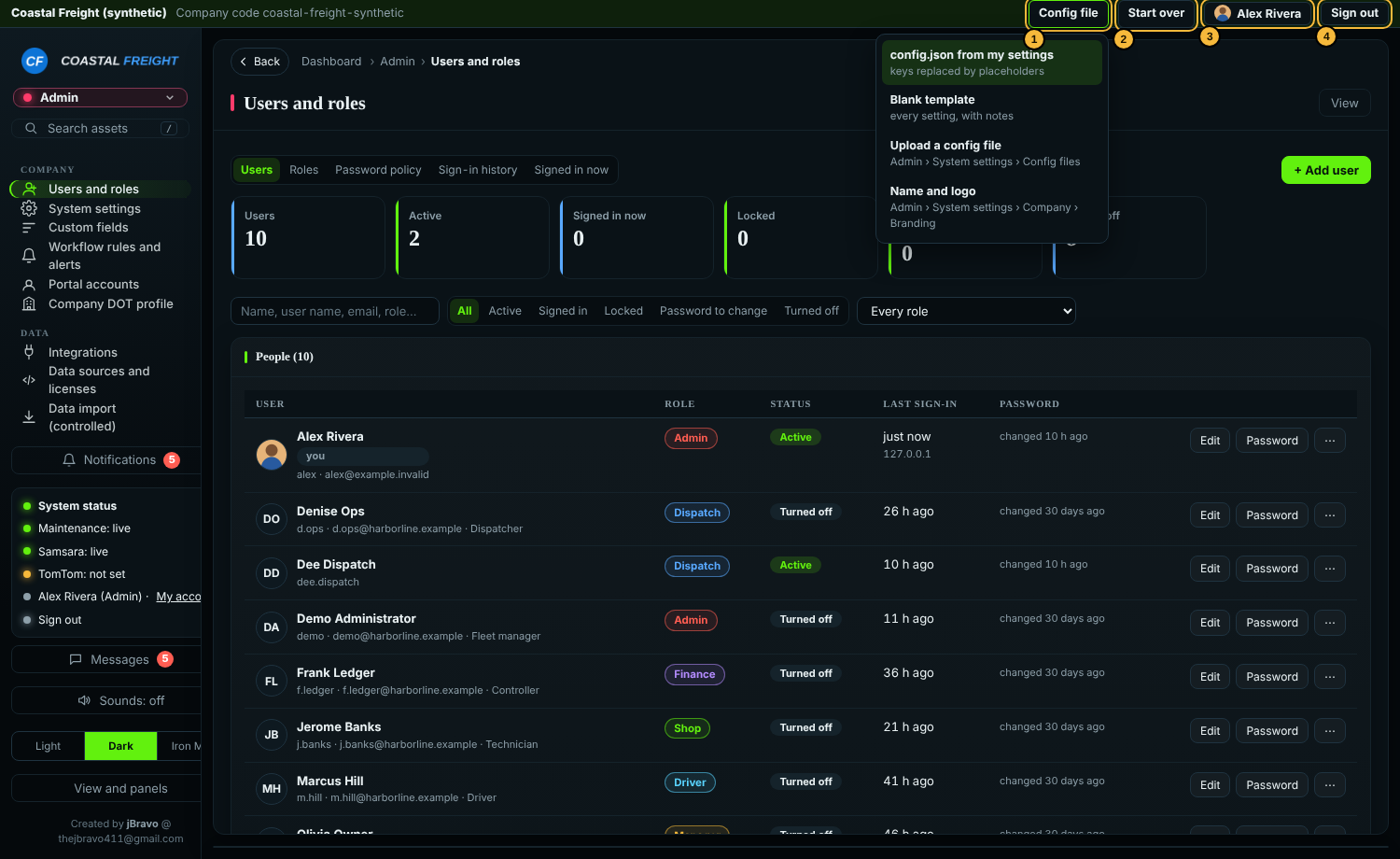
| Control | What it does | |
|---|---|---|
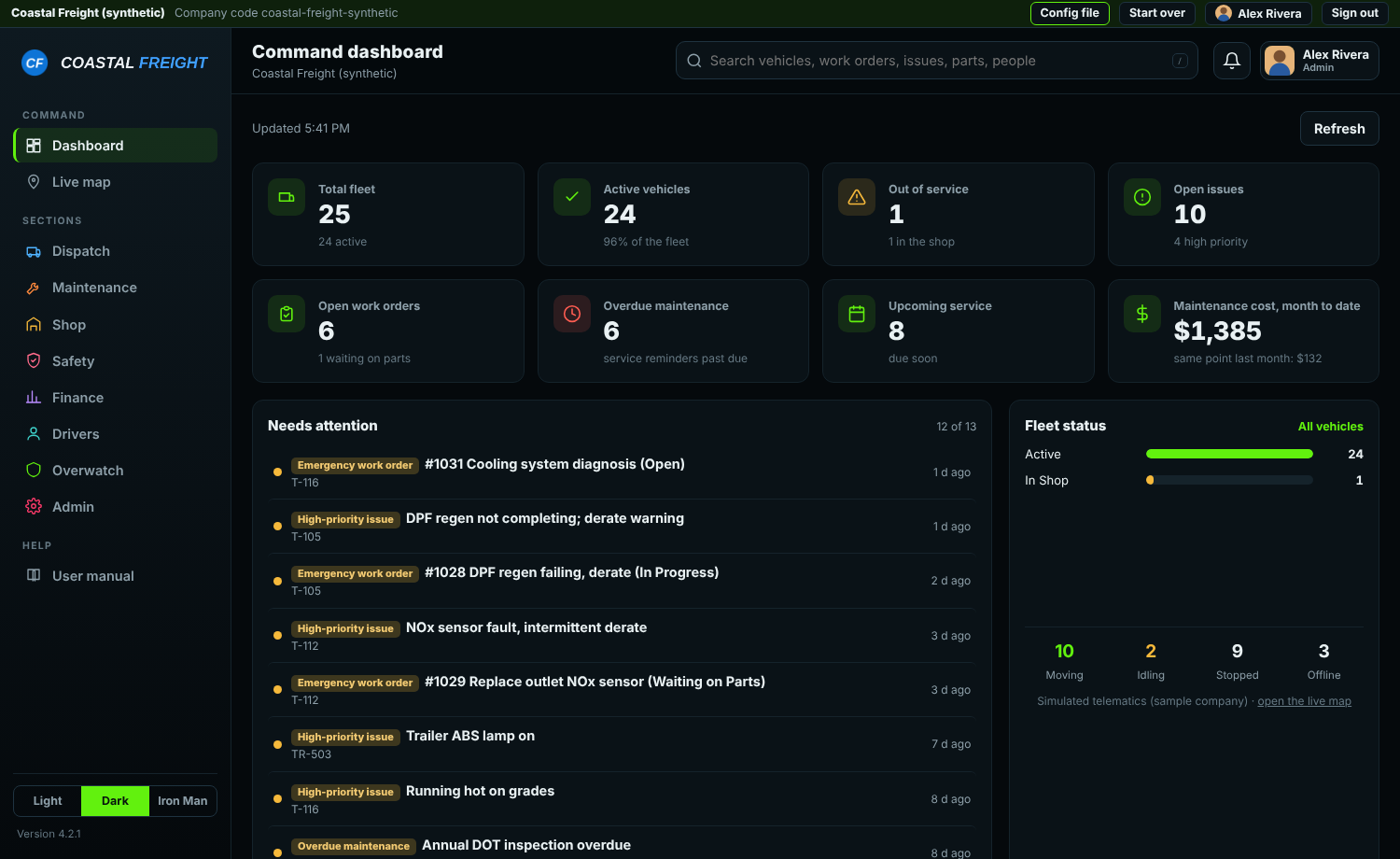
| 1 | Config file | Administrators: download config.json from my settings (your settings with every key and password replaced by a <placeholder>), the blank template with notes on every setting, or go to the upload page |
| 2 | Start over | Administrators: replace every record with the sample company or an empty account. Users, roles and settings (keys included) are kept. Type START OVER to confirm |
| 3 | Your name | My account: your picture, password, two-step sign-in and theme |
| 4 | Sign out | Ends your sign-in on this device |
Your name and logo #
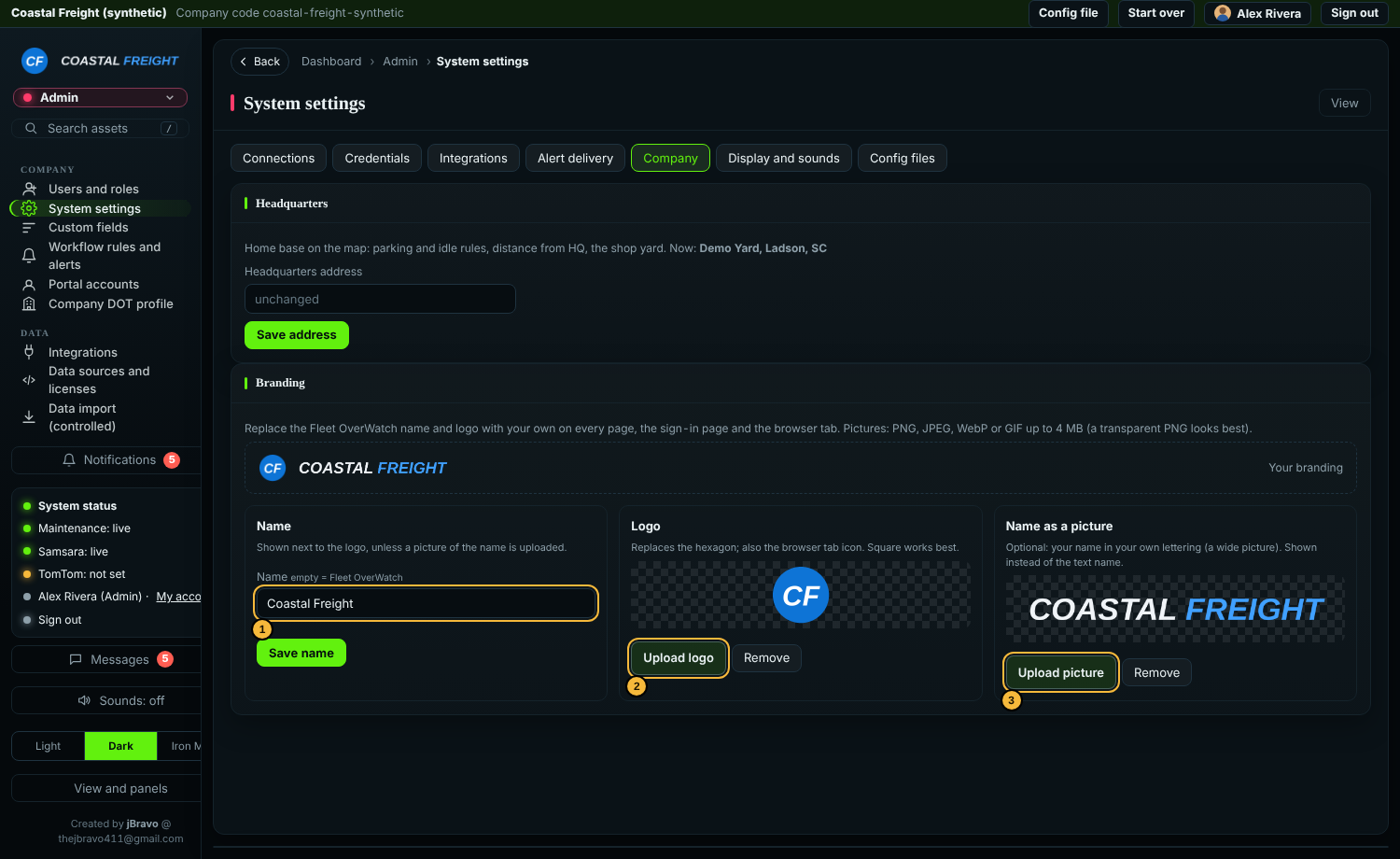
- Go to Admin > System settings > Company and find Branding (or choose Config file > Name and logo in the account bar).
- Type your name (1) and select Save name, and/or select Upload logo (2) and choose a picture. A square picture with a transparent background works best.
- Optional: select Upload picture (3) to show your name in your own lettering instead of text (a wide picture).
Expected result: your logo and name replace Fleet OverWatch on every page, on your sign-in page and in the browser tab, for everyone in your company.
Pictures can be PNG, JPEG, WebP or GIF up to 4 MB; they are resized and stored as PNG. Remove puts back the default. Only administrators can change the branding.
Your picture #
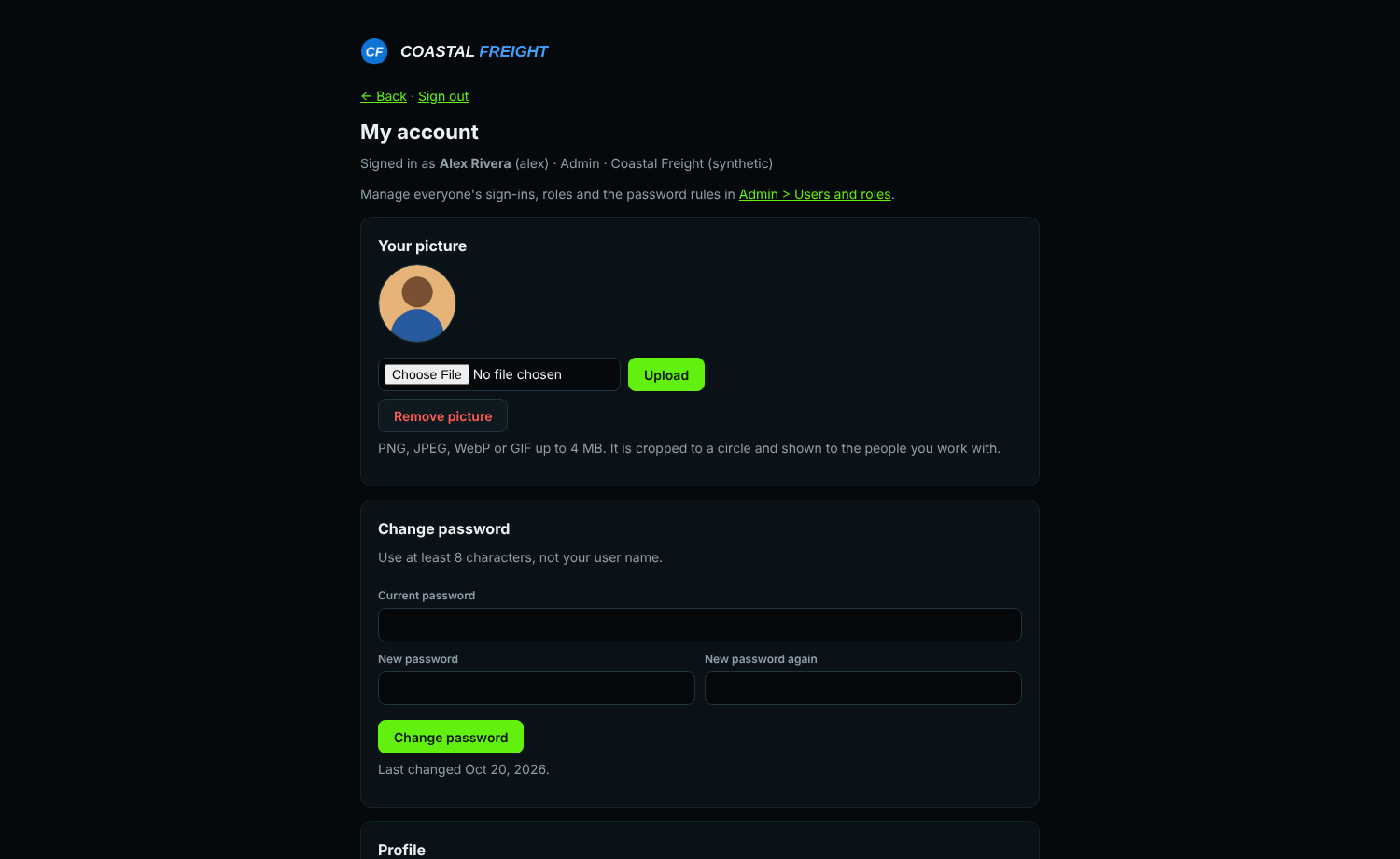
Everyone can add their own picture: select your name in the account bar (My account), choose a picture under Your picture and select Upload. It is cropped to a circle and shown in the account bar, on the dashboard and in the users list, to the people in your company only. Remove picture takes it away.
Two-step sign-in #
Under My account > Two-step sign-in, select Set up, scan the code with an authenticator app, type the code it shows, and keep the recovery codes. To make it compulsory, a company administrator chooses who must use it in Admin > Users and roles > Password policy; people who have not set it up are taken to My account to do so at their next sign-in. An administrator can reset it for someone who lost their phone (Users and roles, the person's menu).
Add your team #
- Go to Admin > Users and roles and select Add user.
- Enter a user name, choose a role (Admin, Manager, Dispatch, Shop, Safety, Finance, Driver, Viewer, or a custom role from the Roles tab), and set a password. Tick must change to make them choose their own at the first sign-in.
- Give them the company code, their user name and the password.
Expected result: each person sees only the sections their role allows, and the server enforces it. With the sample company, the fictional sample sign-ins are listed as Turned off; edit, reuse or delete them.
Connect your own trucks #
- Go to Admin > System settings > Credentials.
- Enter your Samsara API token, or your Fleetio API key and account token, and optionally a TomTom key for traffic, routing and the TomTom map.
- Save.
Expected result: within a minute or two the live map shows your own vehicles instead of the simulation. Keys are stored for your account only and are never shown again (the page shows only that a key is set and its last four characters).
If the map says live data stopped or is restarting #
- "Live data is restarting": the account's background worker was restarted (after an update, or because a part got stuck). It comes back by itself within a minute or two.
- "Samsara is not answering for this account: …": Samsara refused the token; the note shows what Samsara answered (for example HTTP 401). Enter a new token with read access in Admin > System settings > Credentials.
- "Live data stopped updating N minutes ago": the server restarts the worker by itself; if the note stays more than a few minutes, tell the site administrator.
Select the note to close it; it stays closed until the situation changes.
Config files #
The Config file menu (and Admin > System settings > Config files) works with a config.json file:
- config.json from my settings is ready to keep, share with your IT team, or use to install Fleet OverWatch on your own server. Replace each
<placeholder>with the real key, or leave it and enter keys in System settings after Setup. - Blank template lists every setting with notes.
- Upload applies a filled-in file to your account. With Only apply what the file changes ticked, anything left blank or still showing a
<placeholder>keeps its current value. Database and VIN-database settings belong to the server and are ignored.
How long the account lasts #
The account is kept until the service administrator closes it (an expiry date is shown in the account bar only if one was set). A suspended account cannot be signed in to but keeps its data; a closed account's data is removed two weeks after it is closed unless it is reopened.
A company fleet or just me (4.3) #
The sign-up asks who the account is for. A company fleet is full fleet management. Just me keeps up with one person's own vehicles: the maintenance section with vehicles, service reminders, repairs, fuel, renewals, documents and photos, and parts if you want them. Admin › Required fields and policies switches between the two at any time, keeping every record.
Confirming your email address (4.3) #
When the service sends mail, a new account first confirms its email address: open the link in the email within 48 hours. Until then nobody can sign in. No email? Sign in with your user name and password to receive a new link.
Read-only states (4.3) #
An account that has expired, whose subscription is suspended or cancelled, or that the service has made read-only shows a line at the top of every page. Everyone can still sign in, read and export everything; changes are paused. Nothing is deleted.
Something here out of date or unclear? Tell your administrator and mention “company-accounts” and version 4.9.2.