The live map, cameras and telematics
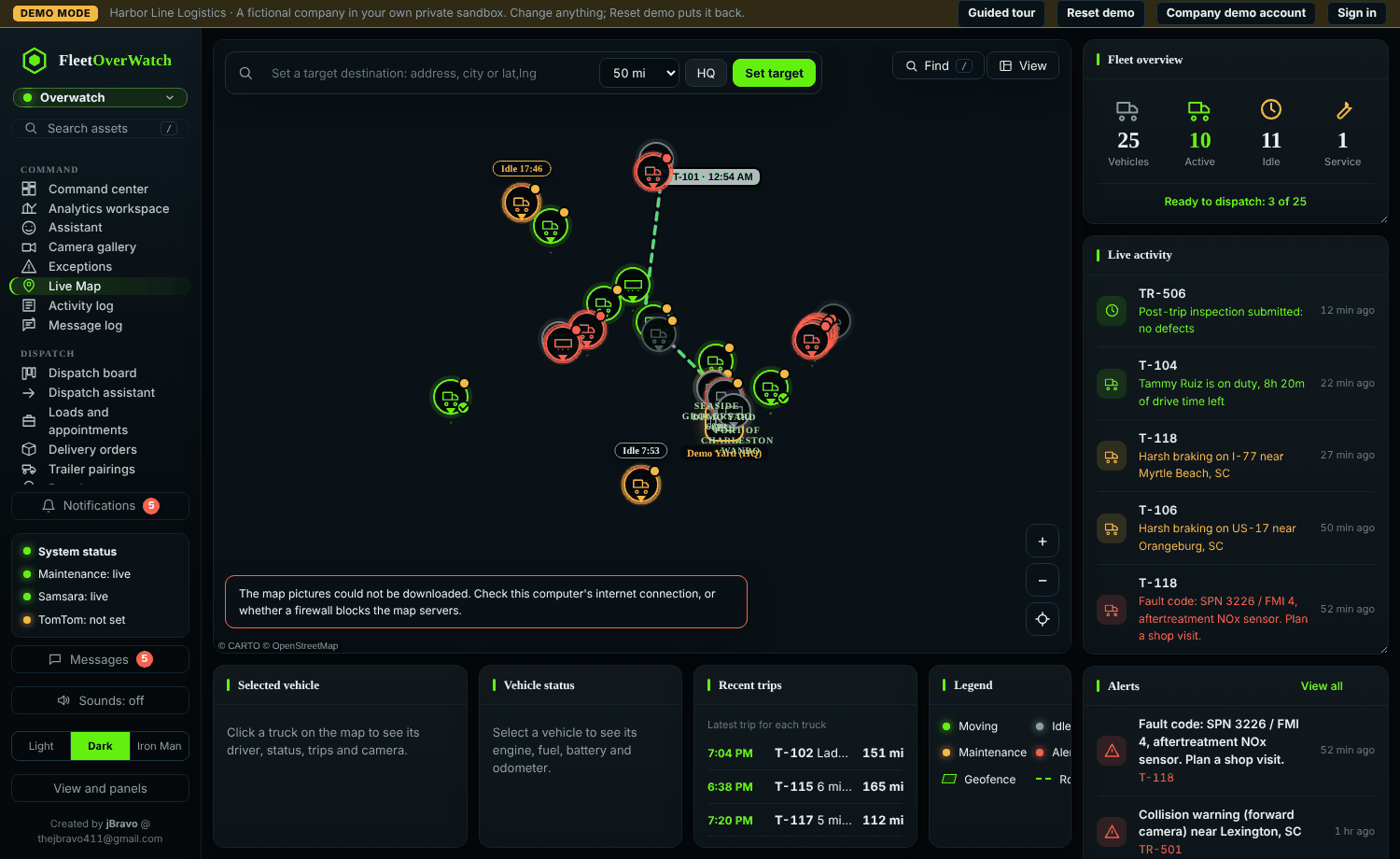
- Every unit with a telematics device appears with its status: moving, idling, stopped or offline. The scope bar filters by group, class, status, region and driver.
- Select a unit for its driver, hours left, location, engine faults, fuel, maintenance, notes and camera.
- The driver: selecting a truck shows a small card above it on the map with its driver's picture, name, duty status and drive time left, and the same at the top of the details panel. The driver is the one signed in to the truck in Samsara; when nobody is, the card shows the driver assigned in Maintenance > Vehicle assignments, or the last driver. A selected trailer shows the driver of the truck pulling it. The picture is the driver's Samsara profile picture when Samsara provides one, otherwise the picture they set in My account (matched by their contact record's Samsara driver id, or by name), otherwise their initials.
- Your own driver pictures (4.2.5): the pencil on the driver row of the details panel changes how that driver looks: a photo, an icon or initials on a colour. Just me is only for your screens; administrators and managers can choose Everyone for the whole company. Your choice wins over the company's, which wins over the Samsara or account picture. Use the original removes it.
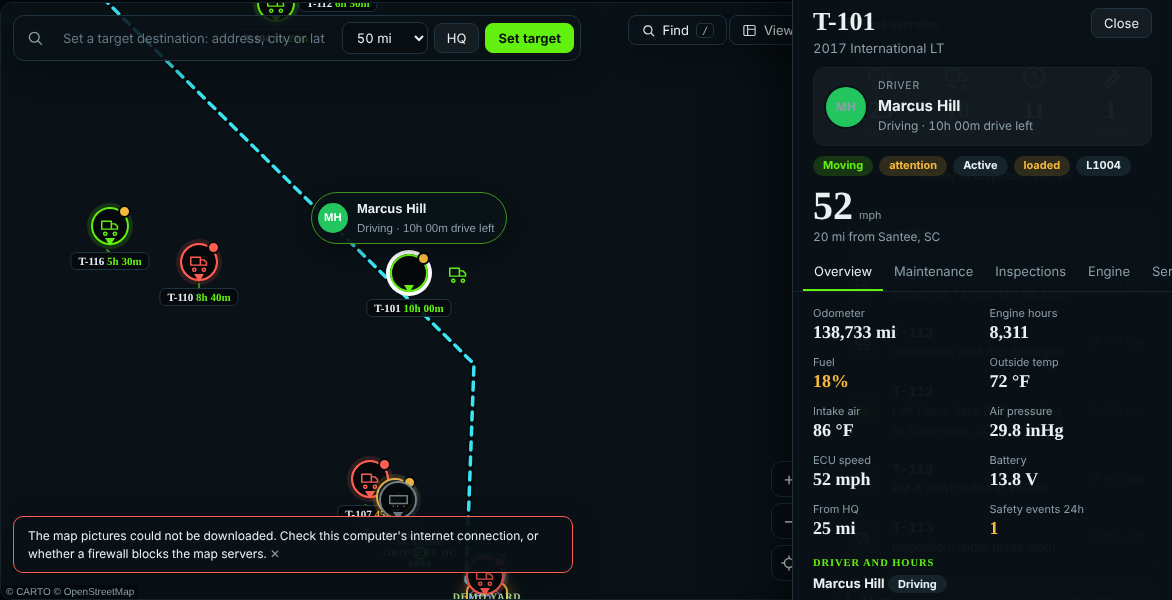
- Vehicle classes (4.5.1): every truck carries its class letter in its class colour: A blue (combination vehicles such as tractors), B orange (heavy straight trucks such as 26' box trucks), C purple, D green (what a regular license covers, such as 16' box trucks and vans). The class comes from the vehicle's Driver must hold field (Non-CDL = D); without it, from its weight (over 26,000 lb: A for a tractor, B otherwise) or its Type / class. Trailers, forklifts and tools have no letter.
- Drivers' license classes: the tag under a truck shows the license of the driver signed in (CDL A, CDL B, CDL C or Lic D, from the driver's contact record). It turns red, with a red ring on the class letter, when the license does not cover the truck (A covers every class, B covers B, C and D, C covers C and D).
- The Vehicle classes legend (bottom left) shows how many trucks are in each class; select a class to hide or show it. Shipments shows the shipment board on the map: open loads at their pickup (orange, ⬆), loads on the road at their destination (blue, ⚑) with a dashed line from the truck. Select a shipment for its details and Open the shipment board. The legend folds away with ▾. A shipment is placed when its pickup or destination is a Place (by name or address), "latitude, longitude", or an address the map can find.
- GPS freshness: the panel shows how long ago the position was reported. A unit that has not reported for a while shows as offline.
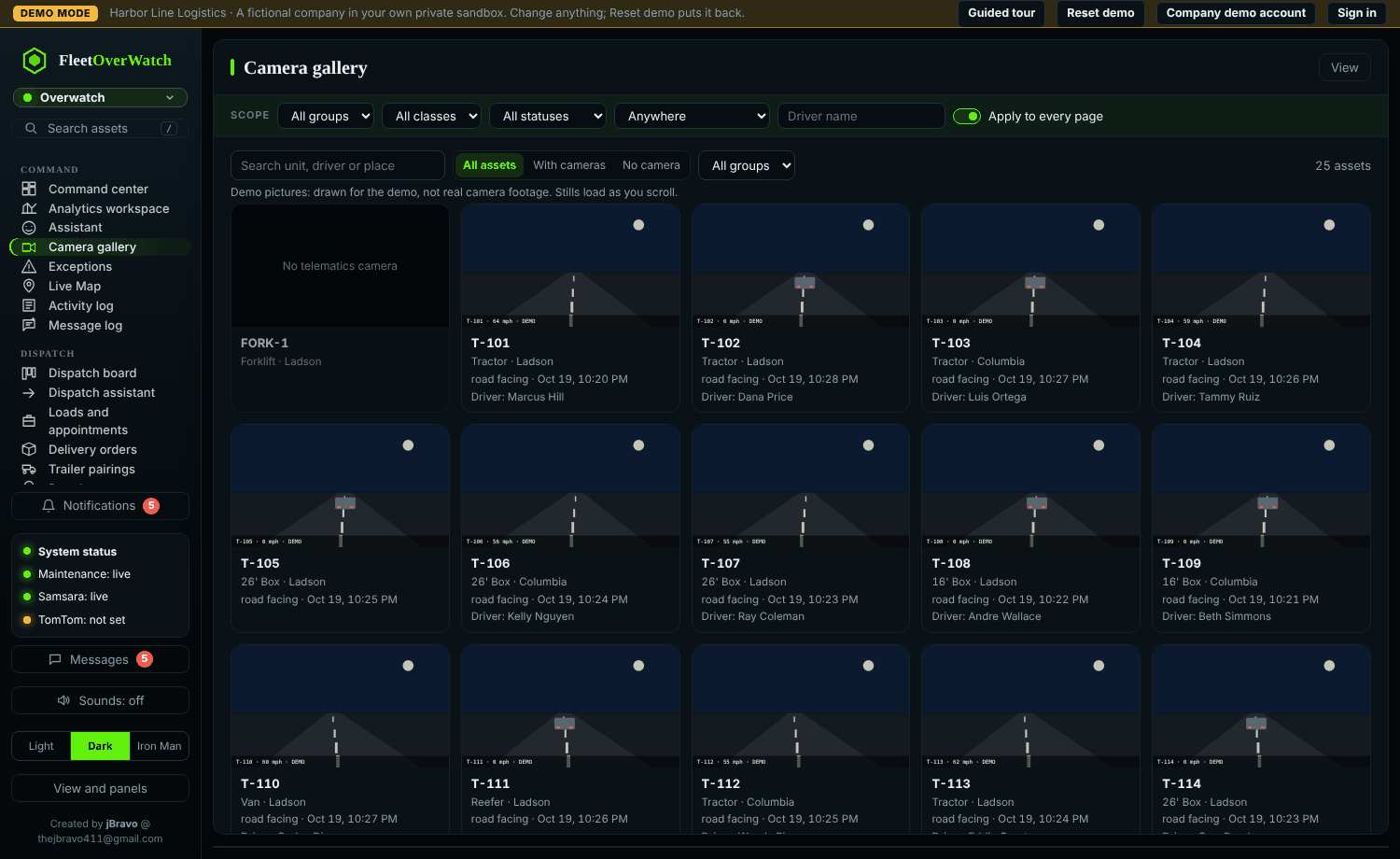
- Camera gallery (Overwatch, Safety, Dispatch): the latest still from each truck running a Samsara dash cam (trailers and vehicles without a camera are not listed). Samsara provides recent stills and event clips, not a live stream.
Icon style and size (4.5.9) #
Open Themes and choose Looks, or select Icon style at the bottom left of the live map. Under Live map icons:
- Style: Pictures (the vehicle by class), Classic pins, Class badges (the class letter), Dots (status colour only) or Arrows (the way each moving truck is heading).
- Icon size: drag the slider (50% to 200%) or pick S, M, L or XL.
Your choice is saved for your sign-in. Use the company default goes back to the company's choice. Company administrators select Make this everyone's default to set it for everyone who has not chosen their own.
Pictures and colours of your own (4.5.8) #
Company administrators and managers select Icons… on the live map (bottom left), Truck and trailer pictures… in Themes, or the pencil next to a trailer in the Trailers window. For any truck or trailer, choose a picture and a colour (the colour picker or one of the ready colours). Everyone in the company sees them straight away. Automatic goes back to the picture for its class (trucks) or its trailer type.
Pictures: tractor (semi), box truck, flatbed truck, dump truck, van, pickup, car, bus, equipment; dry van, reefer, flatbed, step deck, RGN / lowboy, Conestoga, port chassis (empty), port chassis with container, tanker, end dump, hopper.
On a phone (4.5.8) #
The destination search is one line until you tap it. The legend starts folded (tap ▸). Find and View sit under the search line. Tap Fleet to open Fleet overview, Trailers and Live activity as a sheet. Swipe it down or tap ✕ to close it.
Tap a truck (4.5.9): its details open as a short sheet at the bottom, and the map stays in view with the truck moved into sight. Tap a tab, tap the handle or drag the sheet up for all the details; drag it down to shrink it, and down again to close it.
Icon size (4.5.7) #
Since 4.5.9 the icon size is in Themes (see above). In 4.5.7 company administrators had an Icon size control at the bottom left of the live map. Drag the slider (50% to 200%) or pick S, M, L or XL. The size is saved for everyone in the company straight away. Other people see the size the administrator chose.
Vehicle pictures and the Trailers window (4.5.6) #
- Pictures by class: a tractor for Class A, a box truck for Class B, a van for Class C, a pickup for Class D, and a trailer for trailers. The body takes the class colour (a trailer: its style colour); the ring shows the status.
- Trailers window (right rail, under Fleet overview): every trailer with its number and where it is: the geofence it is in, the truck it is hooked to, or the town. Colours show the style: reefer (light blue), dry van (indigo), flatbed (orange), tanker (purple), dump / hopper (yellow), container / chassis (teal), other (grey). Select a style chip to show only that style, type in Find to search, and select a trailer to see it on the map.
- Top 5: select Top 5 in the window's header, tick up to 5 trailers and Save. They stay at the top, starred, in the order you ticked them. Only you see your Top 5.
- The style comes from the trailer's record: its type, body type, make and model (for example Reefer, Flatbed, 53 ft dry van). Set the body type on the vehicle record to change it.
The icon style and size are now in Settings › My settings › Live map icon style and size (the same panel as Themes).
Something here out of date or unclear? Tell your administrator and mention “live-map” and version 4.9.2.