Tires and tread alerts
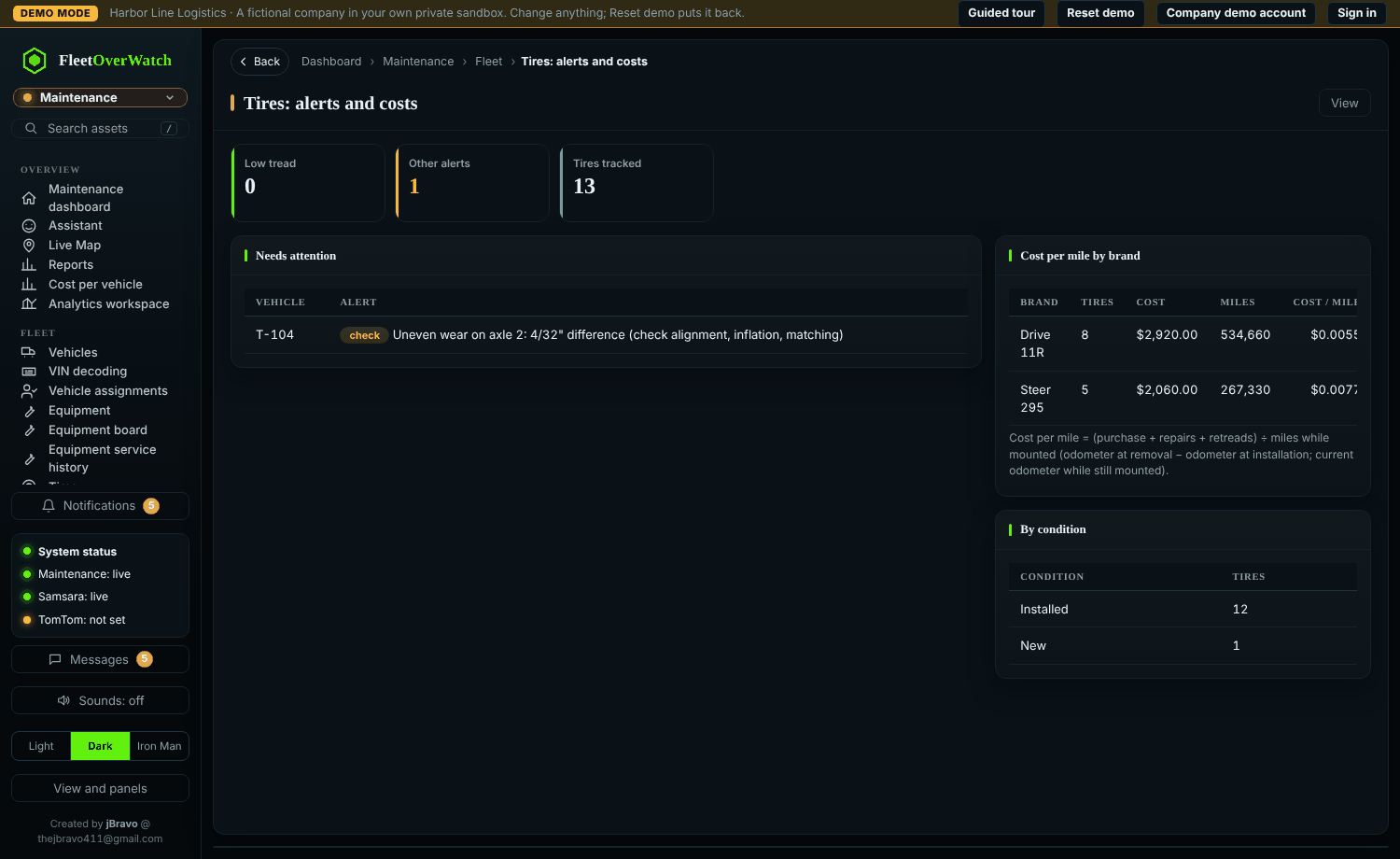
- Each tire has a serial, size, position (axle, side, inner or outer), tread depth in 32nds, pressure, cost and status.
- The vehicle's Tires action shows the axle map with each tire's tread and pressure.
- Maintenance > Tire alerts lists tires at or below their minimum tread, low pressure or inspections that are overdue.
- Purchased, installed, removed, rotated, inspected, repaired, retreaded and scrapped are recorded as tire events, so every tire keeps its history.
Bulk tire stock #
A fleet often keeps a stack of identical tires (forty 11R22.5 drive tires, say) before they get serial numbers on a truck. Maintenance > Bulk tire stock counts them by size, brand, model and condition at each location, instead of one record per tire.
- New bulk tire stock: size, brand, model, condition (new, retreaded, used), what position it is made for, location, reorder point. The name is made from these.
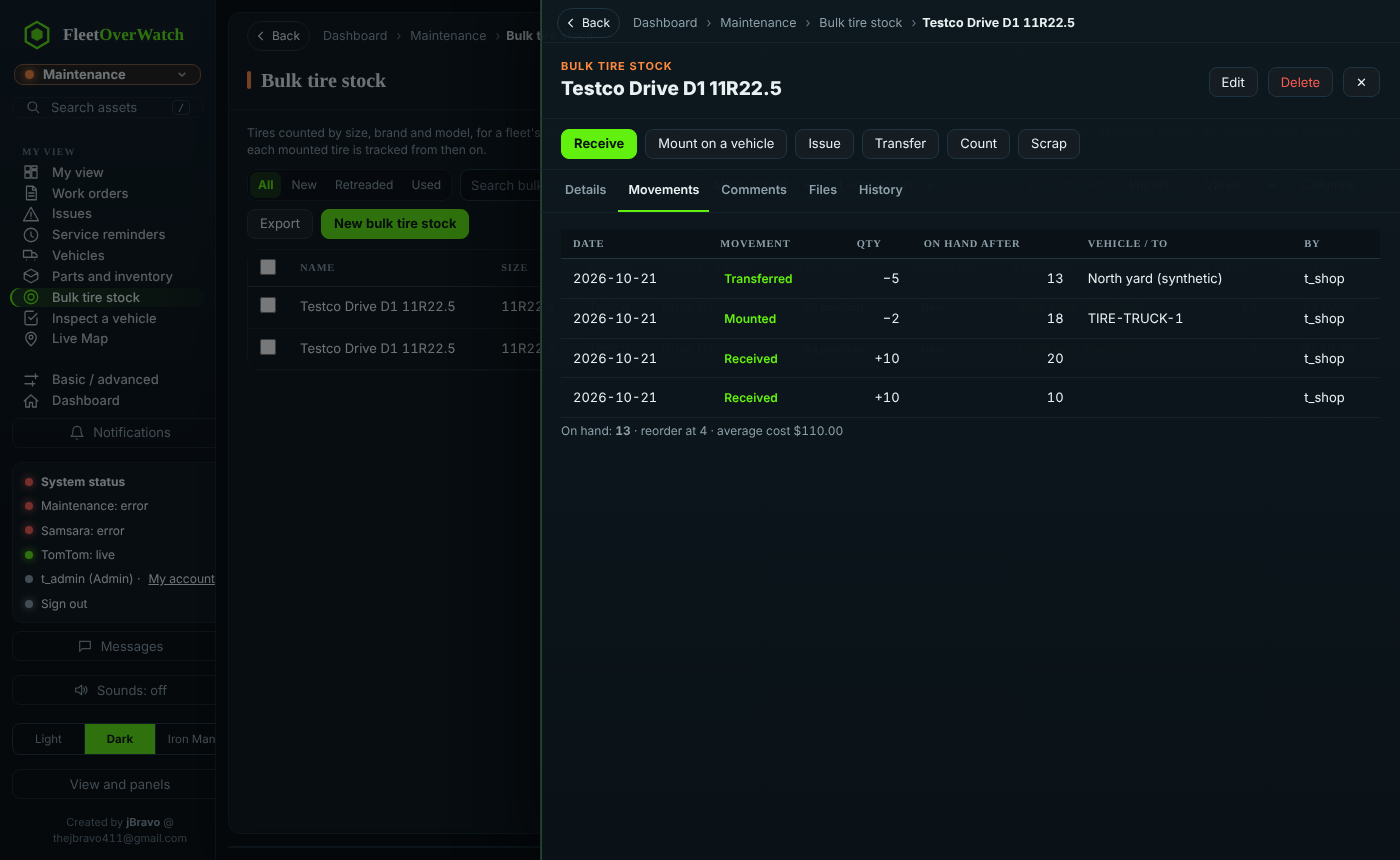
- Use the buttons on the record:
- Receive (bulk order): how many tires and the Order total (what the whole order cost). The cost per tire is worked out for you (total ÷ quantity) and shown as you type, for example $2,999.99 ÷ 8 = $375.00 per tire. Add the vendor, the PO or invoice number and, if you have them, one serial (DOT) number per tire. You can also type a unit cost instead of an order total.
- Every tire received becomes its own tracked tire (Maintenance › Tires), In stock, with its cost, the PO number and its serial (or an automatic number until you give the real one). When the total does not divide evenly, the leftover cents go one each to the first tires, so the tires add up to the order total exactly.
- The unit cost of the stock becomes the average of what is on hand.
- Photos and PDFs: add the invoice, the packing slip or pictures of the delivery in the same form; they are kept on the stock record.
- Mount on a vehicle: how many, the vehicle, optionally the work order and odometer, one serial (DOT) number per tire and the positions (
2-LO, 2-LI). The tracked tires in stock are used (the ones whose serials you type, then the oldest), so no tire is counted twice; an automatically numbered tire takes the serial you type. Each mounted tire is then on that vehicle with its position, cost and an Installed event, with its own tread readings and history. (Tires received before 4.3.18 were not tracked one by one: for those, mounting creates the tracked tires as before.) - Issue (taken for another use), Scrap, Transfer (to another location: its stock there is created or added to, and the tracked tires move with it) and Count (the counted quantity replaces what is on hand; it does not change the tracked tires).
- 📷 Add photo and 📄 Upload PDF: pictures, invoices, spec sheets and warranties on the stock record (Photos and Files tabs). They can also be added in the stock's form.
- Tires one by one lists every tracked tire of the stock: serial, state (In stock, Mounted, Issued, Scrapped), cost, PO and the vehicle it is on. It warns when the count on hand and the tracked tires in stock differ.
- Movements lists every change with the quantity, what was on hand after it and who did it. A movement is never edited or deleted: record a correcting Count instead. A stock record can be deleted only when its count is 0.
How many bulk tires are on hand, by kind, can be shown on My view (Bulk tires on hand).
Something here out of date or unclear? Tell your administrator and mention “tires” and version 4.9.2.