Vehicles and the vehicle profile
Who: Admin, Manager, Shop create and change vehicles; most roles can view them.
Add a vehicle #
- Open Maintenance > Vehicles and select New vehicle.
- Enter at least the name / unit number. Add type, status, group, year, make, model, VIN, plate and odometer.
- Select Save.
Expected result: the vehicle appears in the list and, if its VIN or name matches a telematics unit, on the live map.
The vehicle profile #
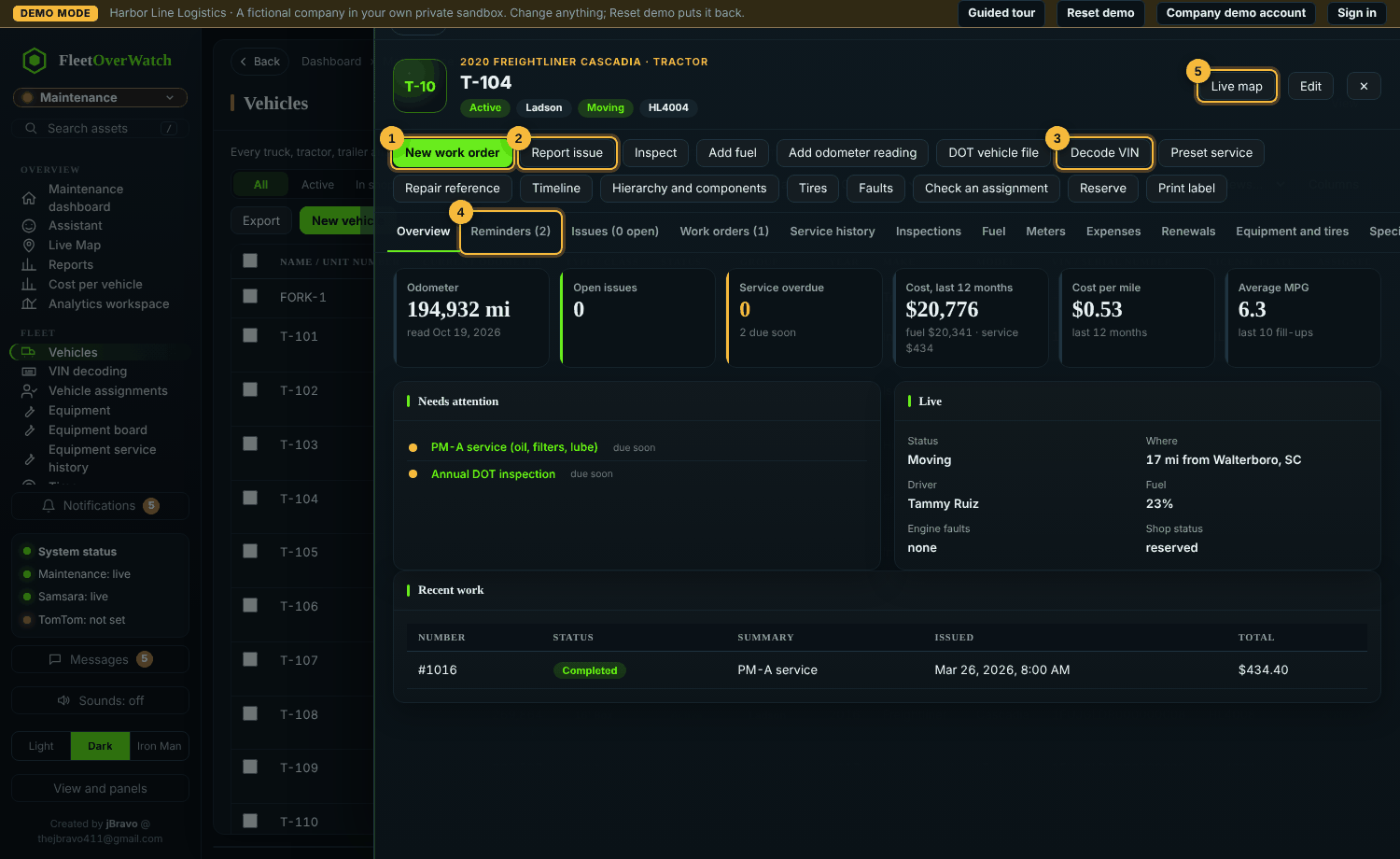
The profile collects everything about one unit: odometer, open issues, overdue service, 12-month cost, cost per mile and MPG; live status from telematics; and tabs for reminders, issues, work orders, service history, inspections, fuel, meters, expenses, renewals, equipment and tires, and files.
Actions along the top include New work order, Report issue, Inspect, Add fuel, Add odometer reading, DOT vehicle file, Decode VIN, Preset service, Repair reference, Timeline (every event in order), Hierarchy and components (trailers pulled, engines, aftertreatment), Tires (axle map), Faults, Check an assignment, Reserve and Print label (QR code).
Fuel type and gas grade #
In the vehicle form (Edit, under Specifications):
- Fuel type is a drop-down: Gas, Diesel, Electric, Hybrid, Propane or Natural gas.
- Gas grade appears only when the fuel type is Gas or Hybrid: Regular, Midgrade, Premium, E85 or Ethanol free. A new gas vehicle starts on Regular.
- Changing a vehicle to any other fuel type clears its grade.
The vehicle's window shows the fuel next to its status, for example ⛽ Gas · Premium.
The vehicle's picture (icon) #
Every vehicle can have a picture. It shows as its icon:
- in the Vehicles list (first column);
- at the top of the vehicle's window;
- in the live map's vehicle window.
Without a picture, the icon shows the end of the unit number.
- Add or change it:
- select 📷 Picture on the vehicle, or select the picture at the top of its window;
- or use Add picture at the top of the New vehicle and Edit vehicle forms. On a new vehicle the picture is saved with it.
- Choose a JPG, PNG or WebP picture. On a phone you can take it with the camera.
- Remove picture: select the picture at the top of the vehicle's window. The file is kept as a deleted file.
- The picture is the vehicle's main photo. Its other pictures stay on the Photos tab, where Make main photo also changes the icon.
Administrators, managers and the shop change pictures. Everyone who sees vehicles sees them.
Vehicle status #
A vehicle's Status is a drop-down, both in the vehicles list and on the vehicle itself. Choose:
- Active;
- In Shop;
- Out of Service: asks for the reason;
- In Storage;
- Off-site Storage;
- any status your company added (Maintenance › Lists).
It is saved at once and kept in the vehicle's status history.
- Administrators, managers, the shop, dispatch and safety change it; others see it.
- A vehicle that is out of service, in storage or in off-site storage cannot be assigned or dispatched until it is Active again.
- The quick filters above the list include In storage and Off-site storage.
Decode a VIN #
- Open the vehicle and select Decode VIN.
- Review the decoded year, make, model, engine and other values. Values that differ from the record are highlighted.
- Choose which values to apply and confirm.
The decode is recorded; nothing is changed until you apply it. Maintenance > VIN decoding can decode every vehicle not checked yet.
Duplicates and merging #
Admin > Duplicate assets lists vehicles sharing a VIN, plate or unit number. Merge shows exactly which records move to the vehicle you keep before you confirm; the other is archived and the merge is recorded in the audit log.
If this does not work #
- A vehicle is not on the live map: its VIN or name does not match Samsara; fill in Samsara vehicle id on the record.
- "VIN check digit is wrong": a character is mistyped (VINs never contain I, O or Q).
Something here out of date or unclear? Tell your administrator and mention “vehicles” and version 4.9.2.