A tour of Fleet OverWatch
Fleet OverWatch is one system for running a fleet: the live position and health of every unit, maintenance and repairs, parts and purchasing, dispatch and deliveries, DOT compliance, costs and the administration of the server it runs on. It runs on your own Linux server and keeps its records in your own database.
The public pages #
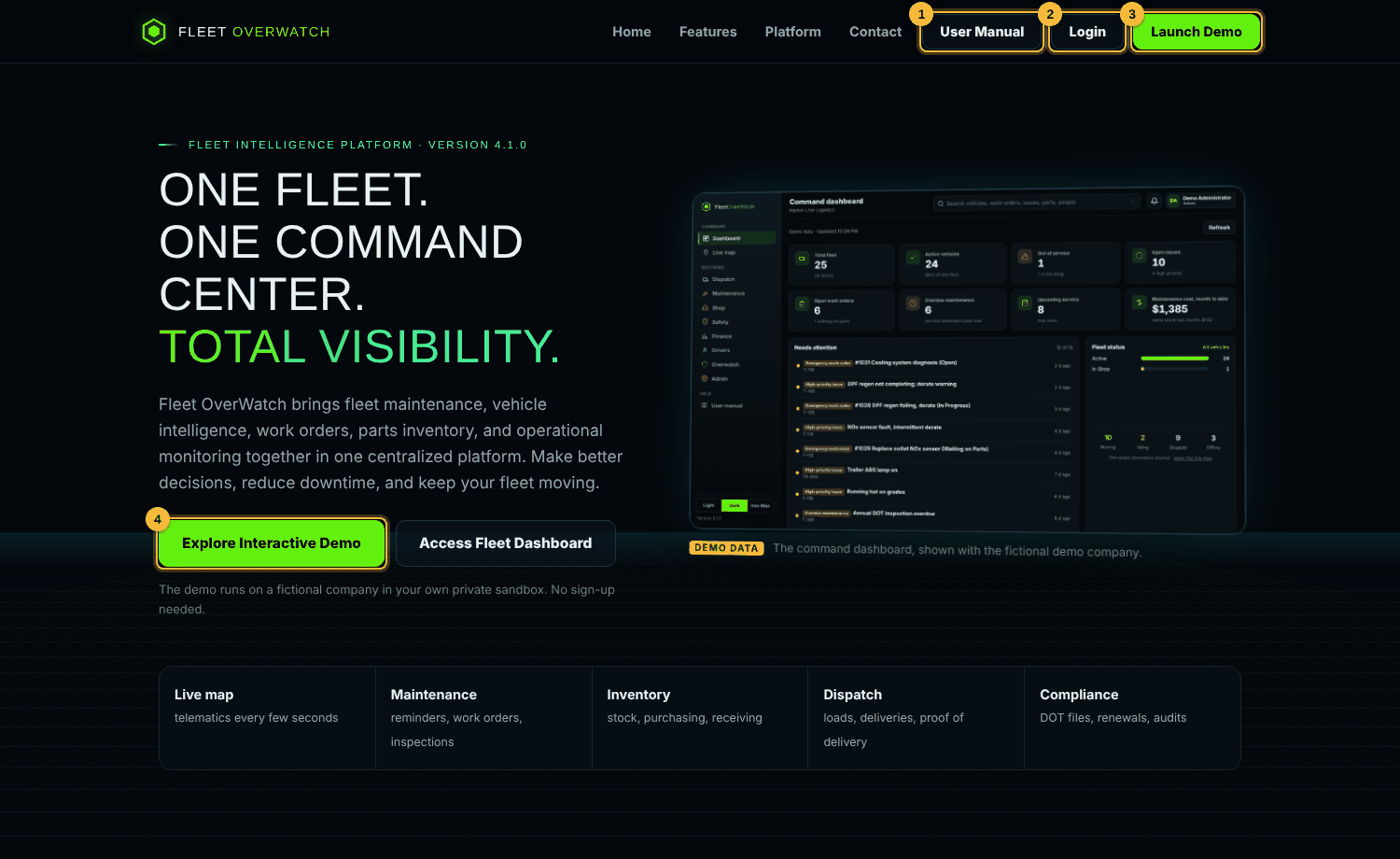
Visitors who are not signed in see the landing page. Its navigation bar has User Manual (this manual), Login (the sign-in page) and Launch Demo (the interactive demo, no sign-in).
Sections #
After signing in, each person works in the sections their role allows:
| Section | For | Main screens |
|---|---|---|
| Overwatch | owners, managers | command center, live map, camera gallery, analytics, assistant, every page of every section |
| Dispatch | dispatchers | dispatch board, loads, delivery orders, load board, customers, invoices, route planner, messages |
| Maintenance | shop lead, managers | vehicles, equipment, tires, reminders, work orders, issues, inspections, parts, purchasing, fuel, costs, imports |
| Shop | technicians | shop queue, bays, work orders, issues, fault codes, diagnostics |
| Safety | safety manager | safety events, scorecards, DOT compliance, driver files, drug testing, accidents |
| Finance | finance and billing | data explorer, cost analysis, fuel, purchasing, invoices |
| Drivers | drivers | my truck, hours, inspections, route planner, report a problem |
| Admin | administrators | server health, users and roles, system settings, logs, errors, audit trail, data tools |
Admins and managers start on the command dashboard. Everyone else opens straight into their own section.
How a section screen is laid out #
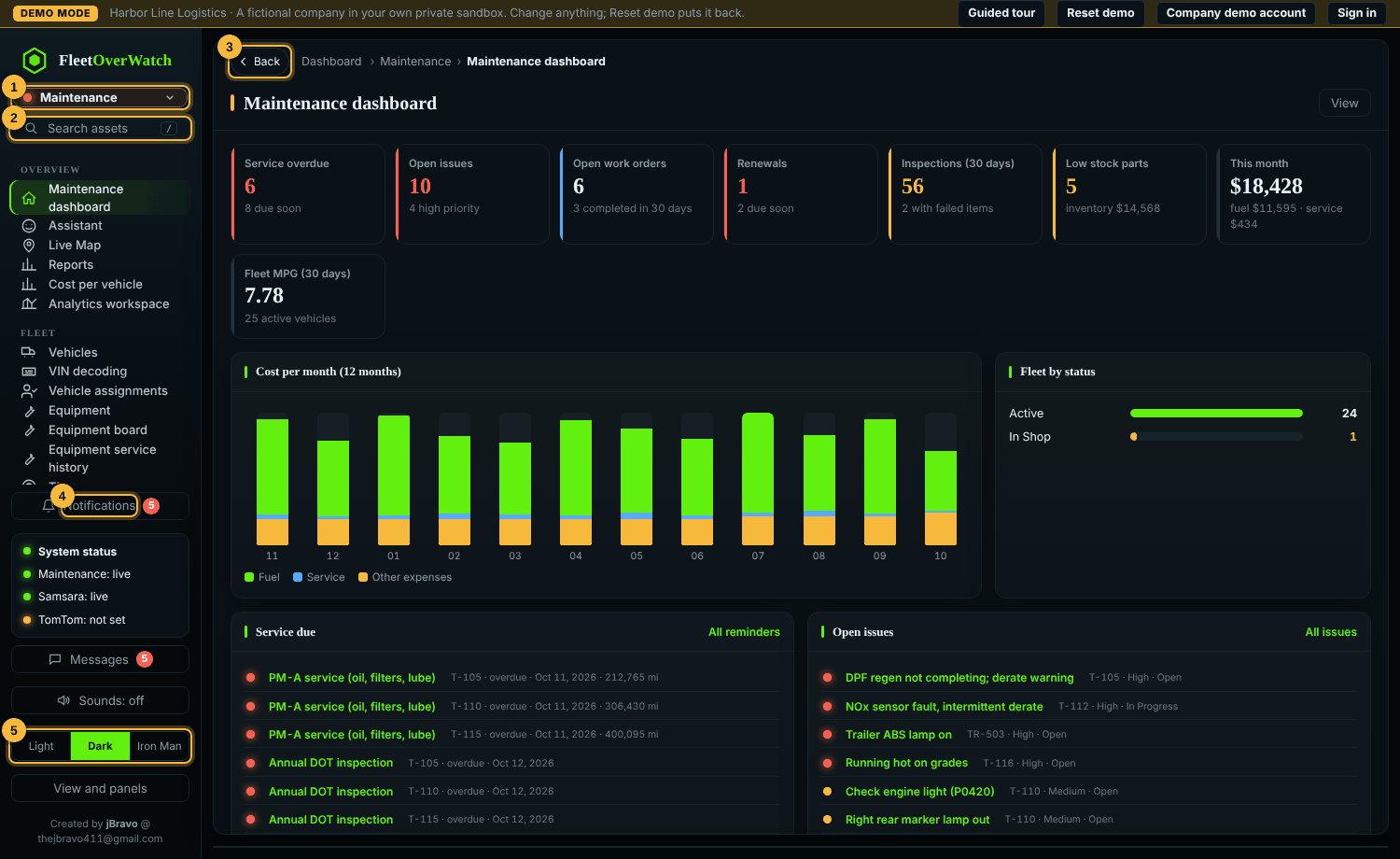
- Section switcher (top of the menu): move to another section you may open.
- Search assets: find a truck, trailer or piece of equipment by name, VIN or plate (press
/). - Breadcrumbs and Back: where you are; Back returns one step (the browser's Back button works the same way).
- Notifications: alerts from workflow rules, approvals and reminders.
- Appearance: Light, Dark or Armor HUD, saved for your sign-in.
The menu groups the pages of the section; the main area shows the page. Lists open records in a panel on the right; the panel has tabs for details, comments, files and history.
What is live and what is a record #
Positions, speed, engine data and hours of service come from telematics (Samsara) every few seconds and are not edited here. Everything else (vehicles, work orders, parts, people) is a record in your database that you create and change in Fleet OverWatch. In the demo, telematics is simulated in the browser and the records live in your private sandbox.
Something here out of date or unclear? Tell your administrator and mention “overview” and version 4.9.2.