Importing work orders from Fleetio
Maintenance > Fleetio work orders reads the files Fleetio itself exports, with Fleetio's own column names. You do not map columns or change the files.
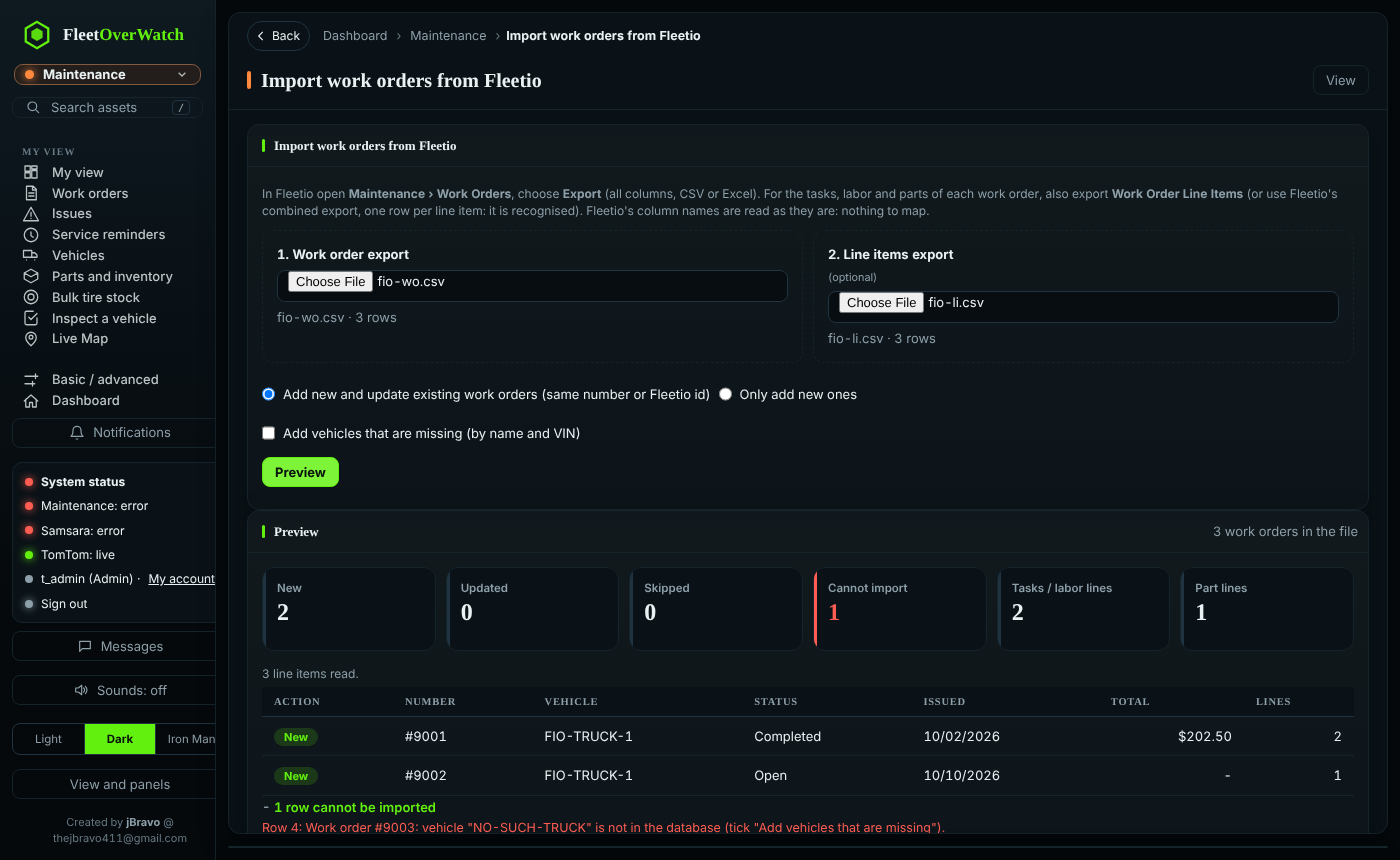
Get the files from Fleetio #
- In Fleetio open Maintenance > Work Orders, choose the work orders (or all of them) and select Export, with all columns, as CSV or Excel.
- For the lines of each work order, also export Work Order Line Items, and for the labor (technician, hours, rate) and parts of those lines Work Order Sub Line Items. Both are optional: without them each work order still gets its tasks (from the export's Service Tasks column) and Fleetio's totals.
Fleetio leaves the work order number out of some line item rows (lines of service entries that were not work orders) and out of most sub line item rows. Those rows cannot be placed: the preview says how many, and nothing is guessed. The work orders' totals always come from the work order export.
Everything in the export is read (4.2.8): issue, scheduled, start, expected and completion dates in the time zone the column names (for example Issue Date (Eastern Time (US & Canada))); start and completion meters; labor, parts, tax, discount and total cost; vendor, invoice and PO numbers; Assigned To, Issued By and Operator (Fleetio's first and last name columns are joined); labels; the summary, assessment and resolved issues (kept in the notes); and, for a vehicle that is not here yet, its year, make, model, type, status, group, VIN and plate. A task name with a comma in it (Brake Hydraulic System Drain, Refill & Bleed) stays one task.
Fleetio's combined export, with one row for each line item and the work order repeated on every row, also works. It is recognised, and the rows of the same work order are joined.
Import #
- Open Maintenance > Fleetio work orders (in the basic view: switch to Advanced first). Or drop the file on Import data: it recognises a work order export with service tasks and offers Use the work order import, which opens this page with the file already loaded and the preview shown.
- Choose the work order file, and the line items and sub line items files if you have them.
- Choose Add new and update existing work orders (matched by Fleetio id, then by number) or Only add new ones.
- Tick Add vehicles that are missing if the file has vehicles that are not in Fleet OverWatch yet (matched by VIN, then name).
- Select Preview. Nothing changes yet: you see how many work orders are new, updated, skipped or cannot be imported, how many task and part lines were found, the first rows, and why any row cannot be imported.
- Select Import.
What comes over #
| Fleetio | Fleet OverWatch |
|---|---|
| Work Order number, Fleetio id | Number (#1234, the same as the Fleetio sync), Fleetio id |
| Vehicle (or VIN) | Vehicle |
| Status, Repair Priority Class, Reason for Repair | Status, Priority, Repair reason (new values are added to the lists) |
| Issue, Scheduled start, Start, Expected completion, Completion dates | The same dates |
| Issued by, Assigned to, Vendor | Issued by, Lead technician (contact), Outside vendor (found by name, or added) |
| Invoice number, PO number, Odometer, Ending meter, Labels, Description, Notes | The same fields |
| Labor, Parts, Tax, Discount, Total | Kept exactly as Fleetio had them |
| Line items: Service Task, Labor, Issue | Tasks with hours, labor cost and technician |
| Line items: Part | Parts on the work order (matched to your parts by part number) |
Completed work orders keep their dates. Importing does not take parts out of inventory again, write new service history entries or change reminders: that already happened in Fleetio.
Undo #
Every import is an import batch. In Admin > Import batches select Roll back on it: work orders it added are removed, and work orders it updated get their previous values back. Vehicles added because of Add vehicles that are missing stay.
If this does not work #
- "This does not look like a Fleetio work order export": the file has no Work Order column. Export from the Work Orders list, not a report.
- "vehicle ... is not in the database": add the vehicle, import vehicles first, or tick Add vehicles that are missing.
- Line items are skipped: they belong to work orders that are not in the work order file.
Something here out of date or unclear? Tell your administrator and mention “fleetio-work-orders” and version 4.9.2.