Importing and exporting records
Import #
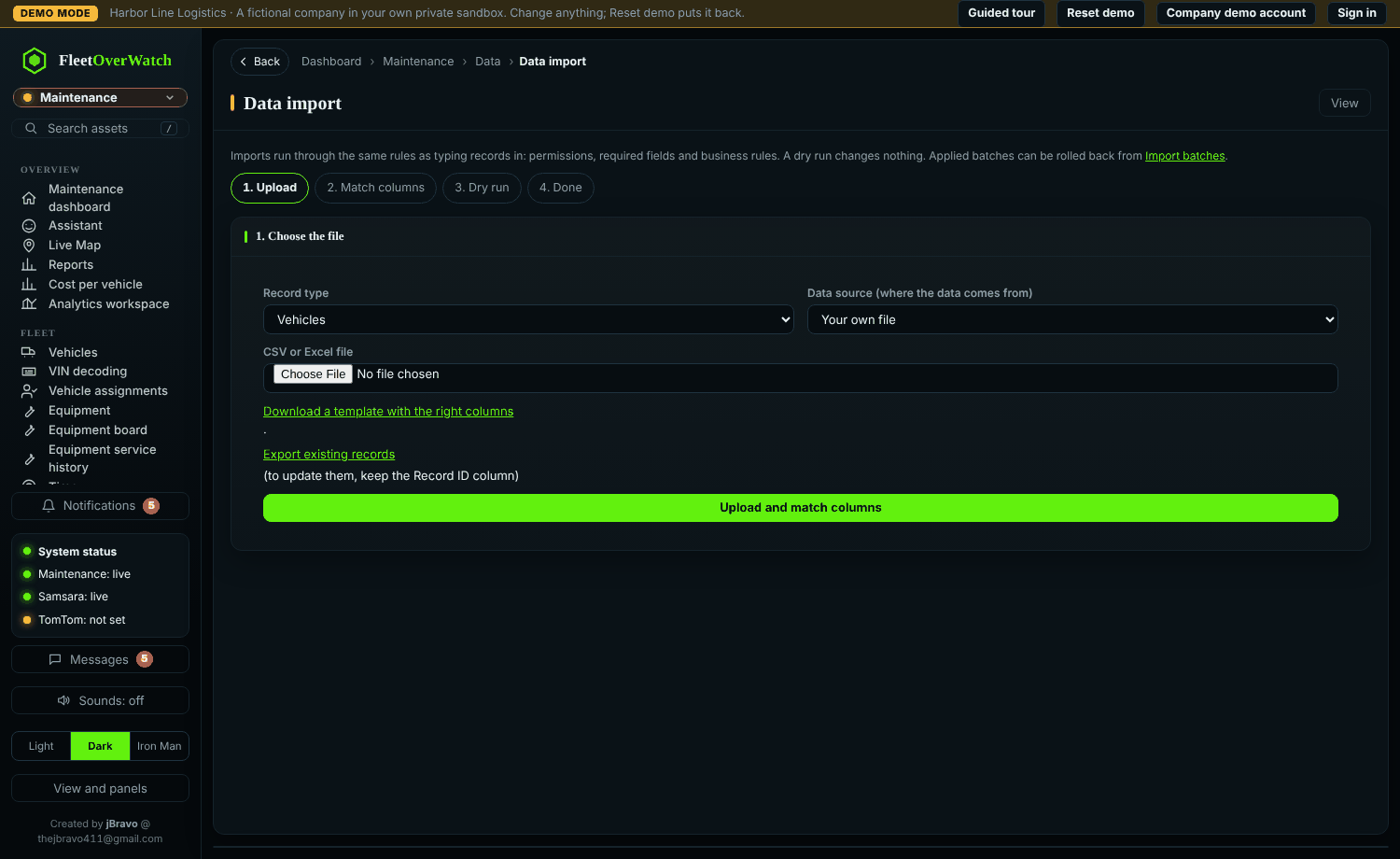
- Data import: choose the record type and upload a CSV, TSV or Excel file (blank templates are available for every type). Fleetio exports are recognized by their columns, exactly as Fleetio writes them (4.2.8): a heading's part in brackets does not get in the way (Total Cost (USD), Issue Date (Eastern Time (US & Canada))), times are moved from the time zone the heading names to this server's, Fleetio's first and last name columns are also read as one (Assigned To, Reported By, Issued By, Operator), and lists separated by "|" keep commas inside their items. Records archived in Fleetio come in archived; fuel entries voided in Fleetio are left out; litres and kilometres are converted; a vehicle an import adds gets its details from the file. Recommended order for a complete move from Fleetio: vendors, contacts, vehicles, parts, then work orders (with line items and sub line items, on the work order import), issues, service history, fuel, meter history and purchase orders.
- Check the column matches and change any that are wrong.
- Choose how to match existing records (for example VIN, unit number, part number) so rows update instead of creating duplicates.
- Preview: nothing is saved yet. The preview shows new, updated, unchanged and rejected rows, and why.
- Apply. Large imports or imports that change stock may need approval.
- If something is wrong, open the import batch and select Roll back: every record it created is removed and every change is undone.
Work orders from Fleetio #
Fleetio's own work order export (and its line items export) is imported as it is, with no column mapping: see Importing work orders from Fleetio.
FleetOverWatch ID and Fleetio ID #
Every record has a FleetOverWatch ID (for example FO-WO-00012), shown at the top of the record. Records imported from Fleetio also keep their Fleetio ID, shown beside it as Imported from Fleetio: imports and the Fleetio sync use it to update a record instead of adding a copy. Either ID finds the record in a list's search box. Exports include both; a file with a FleetOverWatch ID column updates exactly those records.
Export #
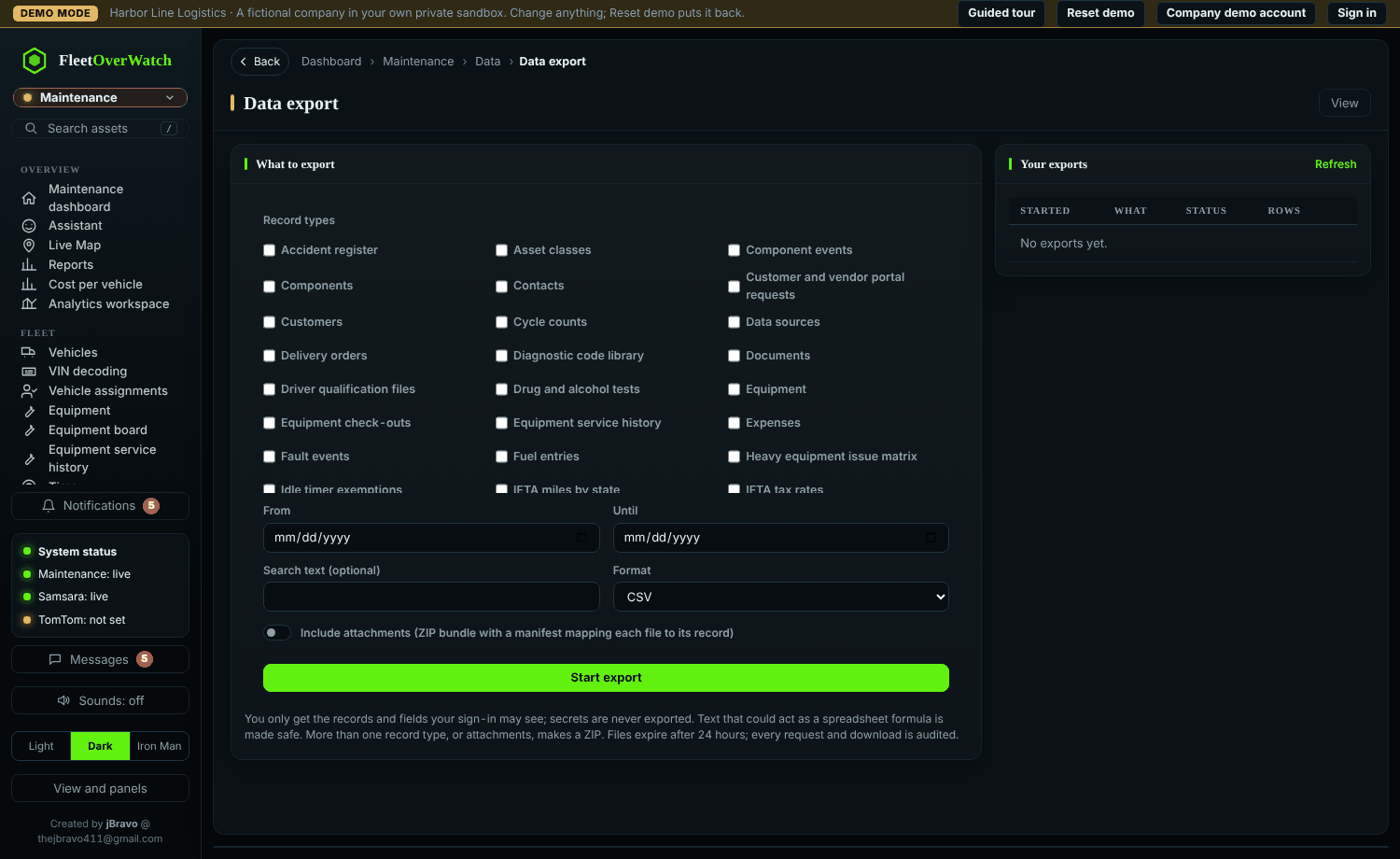
Choose record types, date range, columns and format (CSV, Excel or PDF), optionally with attachments. Large exports run in the background; download them from the list when ready (they are removed after a few days). Who may export is controlled by role.
Something here out of date or unclear? Tell your administrator and mention “import-export” and version 4.9.2.