Finding your way: menus, lists, records and themes
The side menu: groups and sub groups #
The menu is in groups, the section's own headings (Fleet, Service, Inventory and so on). Select a group's name to open or close it; the menu remembers what you opened, and the group of the page you are on always opens. A closed group with a red dot holds critical items.
Colours show the kind of work, the same in every section:
| Colour | Kind of work |
|---|---|
| Grey-blue | Overview |
| Cyan | Operations and dispatch |
| Blue | Fleet and equipment |
| Orange | Maintenance and shop |
| Red | Safety and compliance |
| Green | Inventory and purchasing |
| Gold | Finance and costs |
| Purple | Team and people |
| Grey | Data and setup |
Inside a group, related items are gathered in sub groups with a small heading: Work, Problems and alerts, Due and overdue, Vehicles, Parts and stock and so on. Sub groups that need attention first come first and are highlighted:
- Critical (red bar and label): problems and alerts, work, inspections.
- High (amber bar and label): what is due, live dispatch, compliance, billing, stock to watch, team approvals.
Menu colours, at the end of the menu, shows this legend, Open all, Close all, and Plain list (the menu as it was, without groups; remembered on this browser).
Lists #
Most pages are lists of records with the same controls:
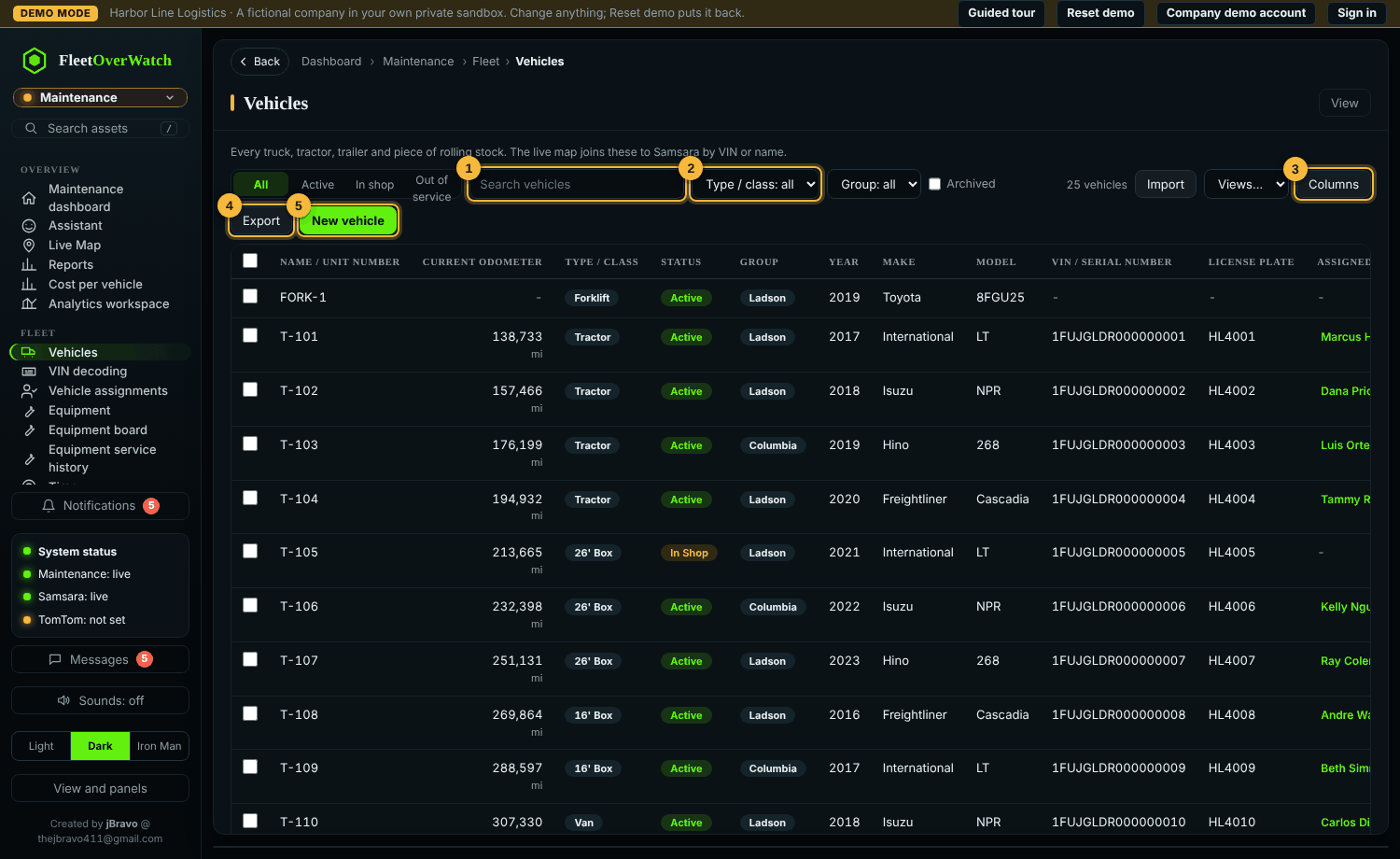
- Search matches the main text fields (names, numbers, VINs).
- Filters narrow by status, type, group and other fields. Quick filters (for example Open, Completed, All) sit at the left.
- Columns chooses and orders the columns; Views saves the current filters and columns under a name (share it with roles if you like).
- Export downloads what the list shows as CSV (spreadsheet programs open it). Text that starts like a formula is made safe.
- New creates a record. Select a column heading to sort; tick rows for bulk changes.
The list remembers its search, filters, sort and page while you work, so Back returns you to the same place.
Records #
Selecting a row opens the record in a panel: details, comments, files (photos, invoices, PDFs) and history (who changed what, when). Edit opens the form; required fields are marked. If you leave a form with unsaved changes, the page asks first.
Breadcrumbs, Back and links #
The breadcrumb line shows the section, the menu group and the page. Back goes one step back; the browser's Back and Forward buttons do the same. The address of every page and open record can be copied and shared: it opens the same record for anyone allowed to see it.
Appearance #
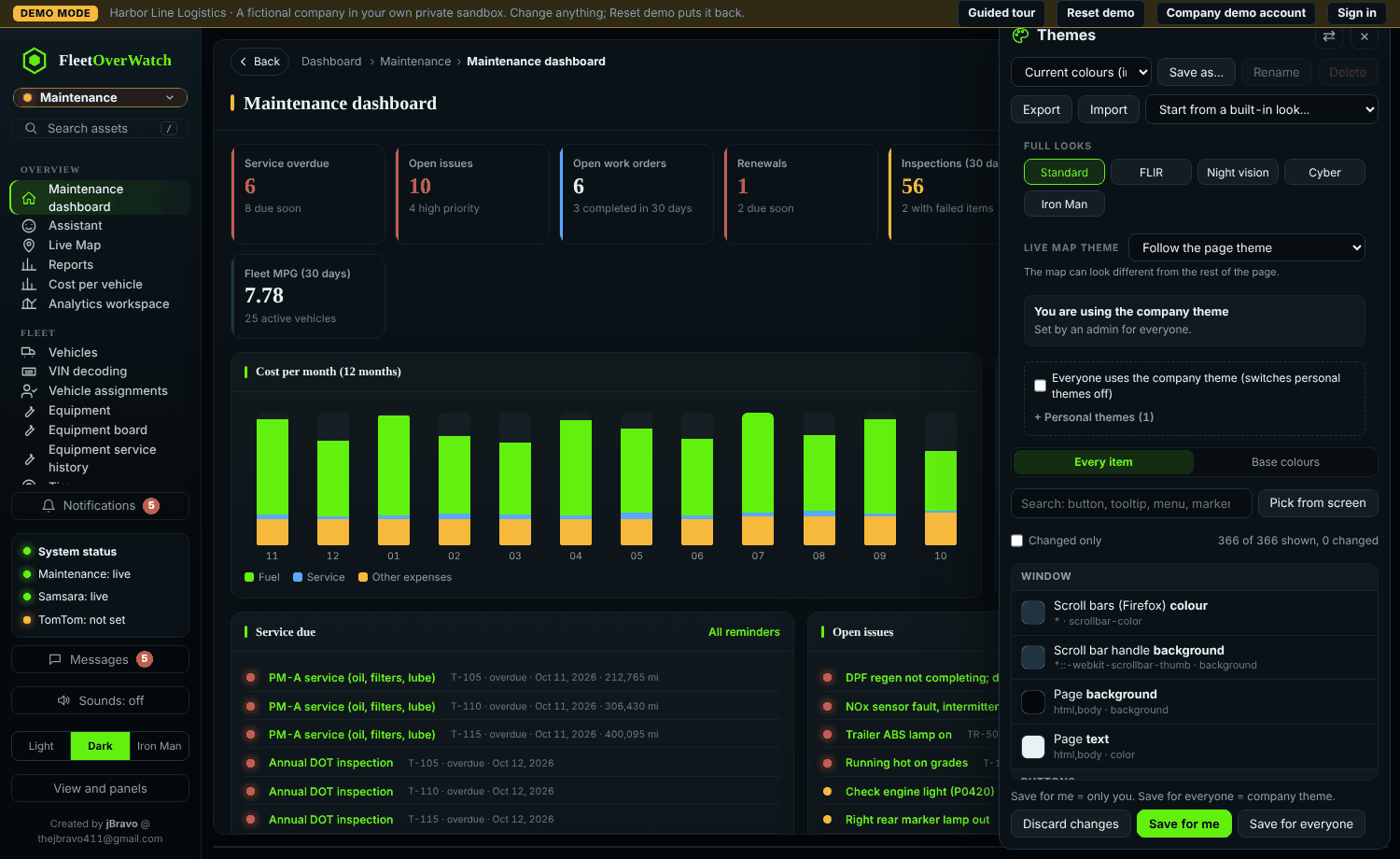
Choose Light, Dark or Armor HUD at the bottom of the menu, or pick one from More themes. The choice is saved for your sign-in. There are 100 themes:
- Business themes: Dark (default), Light, Ocean blue, Amber, Violet and Blueprint. Clean and quiet: no moving background, standard lettering and sounds.
- Tactical: FLIR thermal camera, Night vision, Cyber, Armor HUD.
- Film, game and pop-culture styles: Synthwave sunset, Vaporwave, Retro arcade, Hacker terminal, Space opera, Wasteland, Comic book, Film noir, Steampunk, Zombie outbreak, Fantasy kingdom, Superhero, Frozen tundra, Cyborg hunter, Alien invasion, 90s hacker, Galactic rebellion, Galactic empire, Starship bridge, Dinosaur park, Time machine.
- Tech (4.5.2): Circuit board, Hologram lab, Light-cycle grid, Data center, Quantum, Mainframe, Cyberdeck, Satellite uplink, Robotics plant, AI core.
- Trucks: Big rig chrome, Night highway, Diamond plate, Truck stop diner, Diesel shop, Long haul sunset, Logbook, Hazmat.
- Truck dashboards: amber gauges, blue cluster, digital LCD, and CB radio — backlit instrument-cluster panels with gauges and a blinking turn signal.
- Boards: Chalkboard, Blackboard (coloured chalk) and Whiteboard, in handwritten lettering.
- Casino: Slot machine (marquee lights), Jackpot (spinning reels), Casino night (green felt and cards), Neon strip.
- Arcade: Pinball, Alien shooter (8-bit), Maze chase, Fighting game, Arcade racer, Block stacker.
- Dark and gothic: Gothic, Vampire manor (candlelight), Cathedral (stained glass), Witching hour, Raven.
- Nature and places: Northern lights, Deep sea, Volcanic, Desert dusk, Code rain, Race day, Forest trail, Jungle canopy, Mountain pass, Night city, Tropical night, Zen garden, Cosmic nebula.
- Style: Art deco, Pop art, Pastel paper, Field ops.
- Holidays, each with its own animated scene: Christmas (snowfall, twinkling string lights and a sleigh crossing the sky), Halloween (bats, drifting ghosts, glowing jack-o'-lanterns, fog and a full moon), Thanksgiving (falling maple leaves), Fourth of July (red, white and blue fireworks and waving stripes), New Year (gold fireworks, confetti and sparkles), Valentine's (rising hearts and rose petals), St. Patrick's (a rainbow, spinning gold coins and clovers), Easter and spring (butterflies and petals), Hanukkah (a menorah with flickering candles and falling stars), Lunar New Year (swaying red lanterns and fireworks), Day of the Dead (papel picado banners, marigold petals and candles), Winter holidays (snow under an aurora).
Each themed look changes much more than colours:
| Part | What changes |
|---|---|
| Lettering | its own heading and body fonts, and a text effect (glow, chrome, ink outline, worn stencil, embossed, italic racing, pixel) |
| Layout | the shape and spacing of cards, buttons and windows: standard, compact, soft, sharp, glass, console, retro or roomy |
| Frame | how cards, the menu, buttons, windows and pop-ups are framed: HUD corner brackets, CRT scan lines with a blinking cursor, neon edges, pixel borders, holographic panels, hazard stencils, comic panels with speech-bubble pop-ups, film grain, riveted brass, parchment, frost, holiday ribbons, and more |
| Motion | how screens and windows come in: calm fade, slide, pop, glitch, neon flicker, float, scan, snap, bounce or drift |
| Background | an animated background drawn behind the page: stars, snow, embers, bubbles, rain, falling leaves, petals, code rain, aurora ribbons, a neon grid, fireworks, lanterns, fireflies, drifting sand, gears and others |
| Sounds | its own sound set for pointing, clicking, closing, switches, saving, errors and changing pages (made in the browser; the Sounds switch in the menu turns every sound on or off) |
| Map | its own tint on the live map (a map theme chosen for the live map still wins there) |
The Themes panel shows what the current theme uses. Animations: Full / Subtle / Off (Themes panel, kept for this browser): Full plays everything; Subtle keeps short fades only and no moving background; Off stops all motion. If your device asks for reduced motion, the program follows it. The moving background pauses when the tab is hidden and uses fewer pieces on phones.
Every screen works on a phone and on a desktop: on a phone the menu becomes a bottom bar and the side menu, lists turn into cards, and windows fill the screen.
The themes are in the style of their genres only; they use no film, game or character names, logos or artwork.
If this does not work #
- A page shows "You do not have permission": your role cannot open it; ask an administrator.
- Export downloads an empty file: the list's filters match nothing; clear them and try again.
My view and phones #
Each section opens on My view, the information you chose, shown your way; the Basic | Advanced switch under the section name (Alt+B) shows the full menu. On a phone the menu slides in from a top bar and the main pages are on a bottom bar. See My view, the advanced view and phones.
Your company's own menu (4.4.0) #
Administrators can use the company's own words: ✎ Customize menu at the bottom of any section's menu renames the groups and items, moves an item to another group (or another section) and hides items; Admin › Menu and sections renames the sections and starts over. The changes are for your company only. Who may open a page is still decided by roles: Admin › Users and roles › Data access › Pages to switch off turns single pages off for a role or one person.
Settings (4.6.0) #
Every section's menu has one Settings entry. It holds every setting, in groups:
| Group | Who sees it | What is in it |
|---|---|---|
| My settings | everyone | My account, password and devices; theme; live map icon style and size; alert pop-ups; Basic / Advanced |
| Company | administrators | users and roles, company settings and branding, DOT profile, sign-in and password policy, custom fields, menu names, customer portal, lists |
| Operations | administrators, managers | grading and score resets, grade curve, evaluations, service presets, idle rules, geofences, workflow rules, vehicle classes, map icon defaults, finance settings, cost per mile limit |
| Integrations | administrators | connected services (Samsara, Fleetio, TomTom, Comdata…), API keys and webhooks, connection log, data sources |
| Notifications | administrators | company email server, admin alerts |
| Server | server administrators | site email server, landing page, demo roles, plans, Automation and AI, updates and backups, access control, security, server status |
Type in the search box to find a setting by name. The old menu entries for these pages are gone from the menus, but their addresses still open them, with ‹ Settings to go back. On a phone each group opens as its own page.
Something here out of date or unclear? Tell your administrator and mention “navigation” and version 4.9.2.