Signing in, two-step sign-in and your account
Before you start #
You need a user name and password from your administrator. Administrators (and anyone with system-administration permissions) also need an authenticator app on their phone, such as any app that supports time-based one-time codes (TOTP).
Sign in #
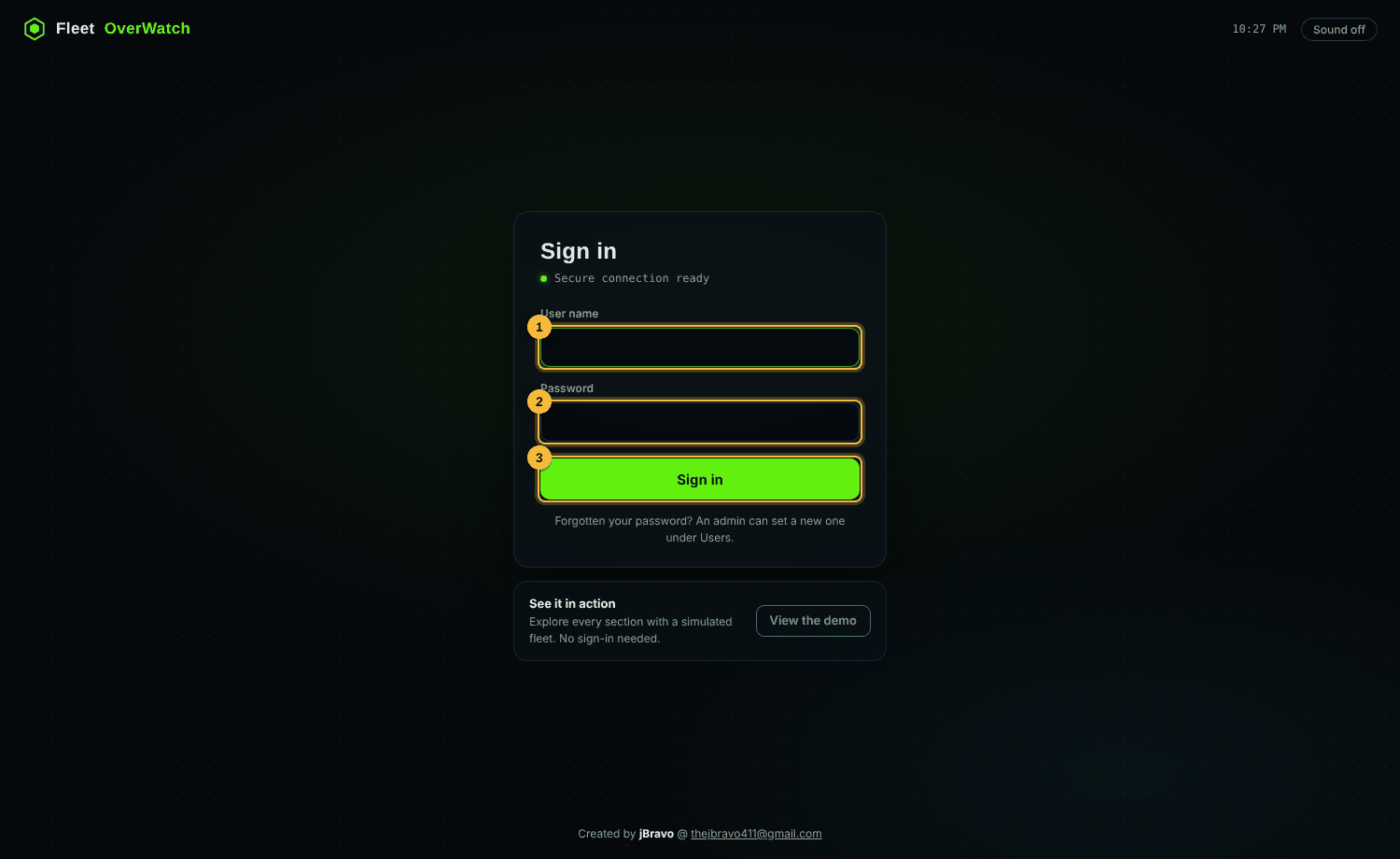
- Open the site address and select Login (or go to
login.php). - Enter your user name (1) and password (2).
- Select Sign in (3).
Expected result: admins and managers see the command dashboard; other roles open their own section. A new account, or a password that has expired, goes first to My account to choose a new password.
Two-step sign-in (authenticator code) #
The administrator decides who must use two-step sign-in (Admin > Users and roles > Password policy):
| Policy | Who needs a code |
|---|---|
| Privileged (default) | administrators and anyone with system-administration permissions |
| Staff | everyone except drivers and viewers |
| Optional | nobody is forced; anyone may turn it on in My account |
| Off | nobody is asked for a code, even people who set it up (their setup is kept for when it is switched back on) |
The first time a person who needs it signs in, the page shows a QR code:
- Open your authenticator app and add an account by scanning the QR code (or type the key shown under it).
- Enter the 6-digit code the app shows and select Turn on.
- Write down the recovery codes that appear and keep them somewhere safe. Each works once if you lose your phone.
Every later sign-in: after the password, enter the current 6-digit code (or a recovery code).
My account #
Open it from the account menu (top right of the dashboard) or account.php:
- change your password (the rules come from the password policy),
- turn two-step sign-in on or off when the policy allows it, and make new recovery codes,
- choose your appearance (Light, Dark, Armor HUD).
If this does not work #
- "Too many attempts": the account is locked for the time the policy sets (15 minutes by default). Wait, or ask an administrator to select Unlock on your user in Users and roles.
- Lost phone, no recovery codes: an administrator selects Reset two-step sign-in on your user in Admin > Users and roles; you set it up again at the next sign-in. If the only administrator is locked out, the server administrator runs
sudo -u www-data php /opt/fleet-overwatch/worker.php mfa-reset NAME, or turns two-step sign-in off for everyone withsudo -u www-data php /opt/fleet-overwatch/worker.php mfa-policy off. - Signed out unexpectedly: sign-ins end after the inactivity time in the policy (12 hours by default), or when an administrator changes your role, password or signs you out.
Something here out of date or unclear? Tell your administrator and mention “signing-in” and version 4.9.2.