Parts, stock and inventory transactions
Parts and their numbers #
A part has a main number and any number of alternate part numbers (manufacturer, supplier, superseded numbers). Search finds a part by any of them. Fitment records which vehicles a part fits and how sure that is (confirmed, likely, not verified).
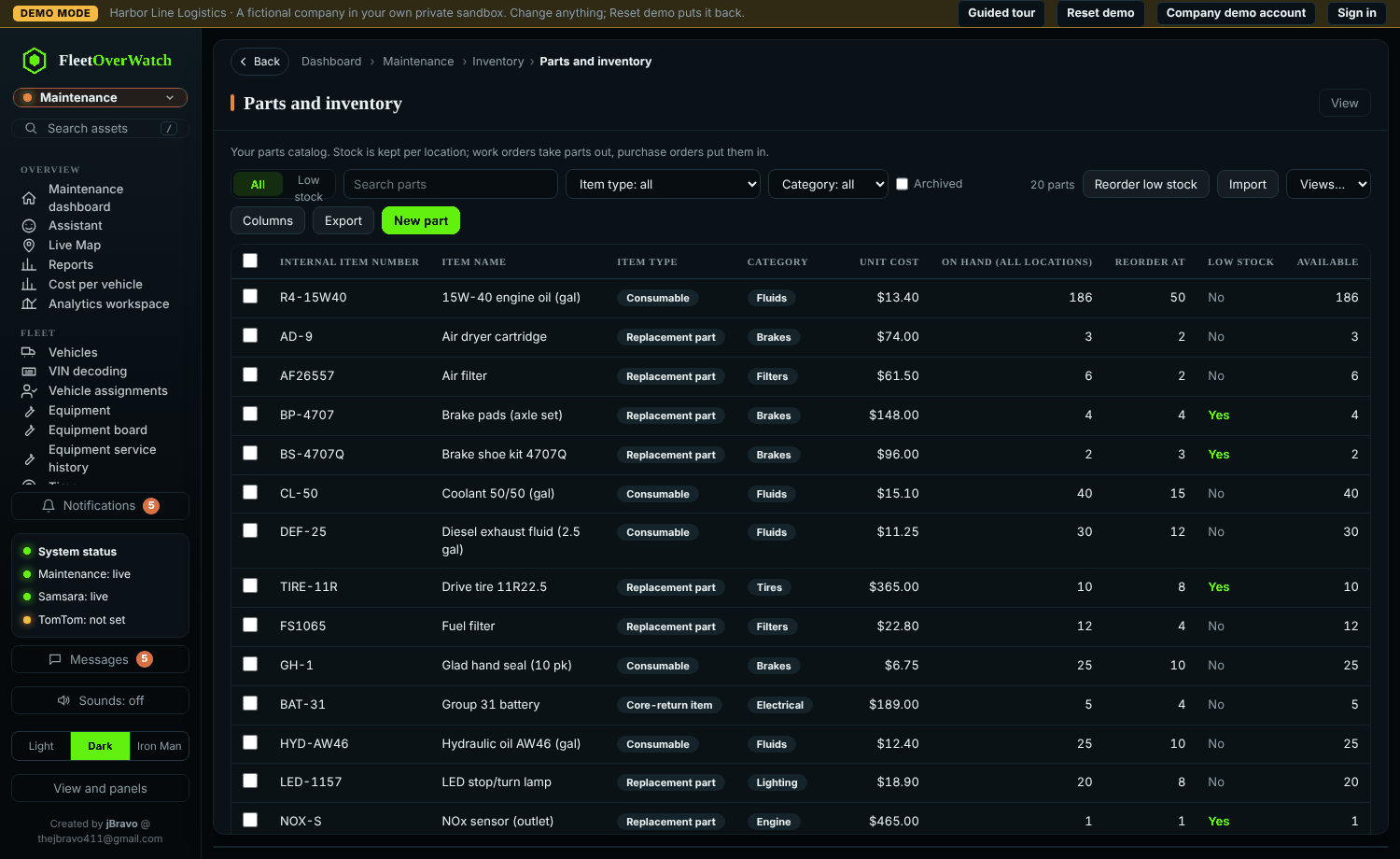
The parts list (Fleetio's columns) #
The parts list has a column for every column of Fleetio's part export, in the same order: Photo, Last used, Fleetio ID, Part, Location, Description, UPC, Category, Manufacturer, Manufacturer part number, Reorder point, Total quantity, On active purchase orders, Allocated to work orders, Measurement unit, Aisle/Row/Bin, Aisle, Row, Bin, Track inventory, Unit cost, Tire size, Associated vehicles, Linked service tasks, Created on and Updated on. Columns hides or shows any of them; the choice is kept.
Some columns are worked out by the program and kept up to date:
- On active purchase orders: quantities still to arrive on purchase orders that are pending approval, approved, purchased or partly received (drafts do not count).
- Allocated to work orders: quantities on work orders that are not completed or cancelled.
- Associated vehicles and Linked service tasks: how many vehicles the part is for, and how many service tasks list it as a standard part.
- Location, Aisle/Row/Bin, Aisle, Row, Bin: from the part's stock at each location.
- Last used: the last time it went on a work order (or Fleetio's date, if later).
The quick filters Tracked and Not tracked list parts by Track inventory.
Import Fleetio's part export #
In Fleetio open Inventory › Parts, choose Export (all columns). In Fleet OverWatch, use Import on the parts list (or Import data) and choose the file: every column is matched by itself, nothing to set.
- Fleetio writes one row per part and location. Each row adds or updates that location's stock: quantity, Aisle/Row/Bin, Aisle, Row, Bin and Track inventory.
- A part is matched by its Fleetio ID (then its part number), so importing the file again updates the parts instead of adding copies.
- A Description on several lines: the first line becomes the part's description (its name), the whole text is kept in Full description.
- Created on and Updated on keep Fleetio's dates; Last used keeps Fleetio's date.
- The four columns Fleetio works out (on purchase orders, allocated, associated vehicles, linked service tasks) are not copied: the program works them out from its own purchase orders, work orders, vehicles and service tasks.
- Item type is Replacement part unless the file says otherwise.
Track inventory #
Track inventory is on for a new part. Turn it off for shop supplies bought as needed (rags, zip ties): then no quantities are kept for it.
- Work orders record the part without changing the stock count (No inventory adjustment).
- Invoices and purchase orders received for it keep the cost, not a count.
- It is never low on stock.
From Fleetio's export, Track inventory is set per location; the part is tracked when it is tracked at one of its locations. On the part's Stock tab, Track inventory here changes it for one location.
Vehicles a part is for #
In the part form, Vehicles this part is for adds any number of vehicles (the part's Vehicles tab does the same). In a work order on one of those vehicles, the part picker lists the part first, marked For this vehicle. A vehicle chosen on an invoice line is added here too.
Parts invoices (photos or PDF) #
Upload invoice is on the parts list, on each part, and in the part form. Take photos of the invoice pages (on a phone the camera opens) or choose a PDF.
- The invoice is read: vendor, invoice number, date, tax, total and the lines (part number, description, quantity, unit cost).
- Each line is matched to a part by its part number, other part numbers, UPC or name. Check every line: change picks another part, new part makes one from the line, and a line that is not a stock part (freight, fees) can stay unmatched or be removed. Choose the location and, if you like, the vehicle the part is for.
- Receive into inventory: each matched line goes into stock at its location with the invoice's unit cost, written to inventory history as Invoice <number>. File without receiving keeps the invoice on the parts without changing stock; Save for later keeps it as Needs review.
The invoice stays on its record (Maintenance › Parts invoices) and appears on every part on it (part › Invoices). The same invoice from the same vendor cannot be received twice. Invoice pictures never become a part's photo. Reading photos needs tesseract on the server, and PDFs need pdftotext; the installer adds both. A page that cannot be read is still kept: type the lines in.
Photos #
Each part can have pictures: the catalog image, the packaging or label, the part on the shelf, damage. In the part form, Add photo (new or existing part); on the part select Add photo (on a phone this opens the camera) or use the Photos tab. The first picture becomes the part's main photo, shown as a thumbnail in the parts list and on the record; Make main photo on another picture changes it. Removing the main photo makes the newest remaining picture the main one. Pictures are checked and stored like every attachment (JPG, PNG or WebP).
Stock by location #
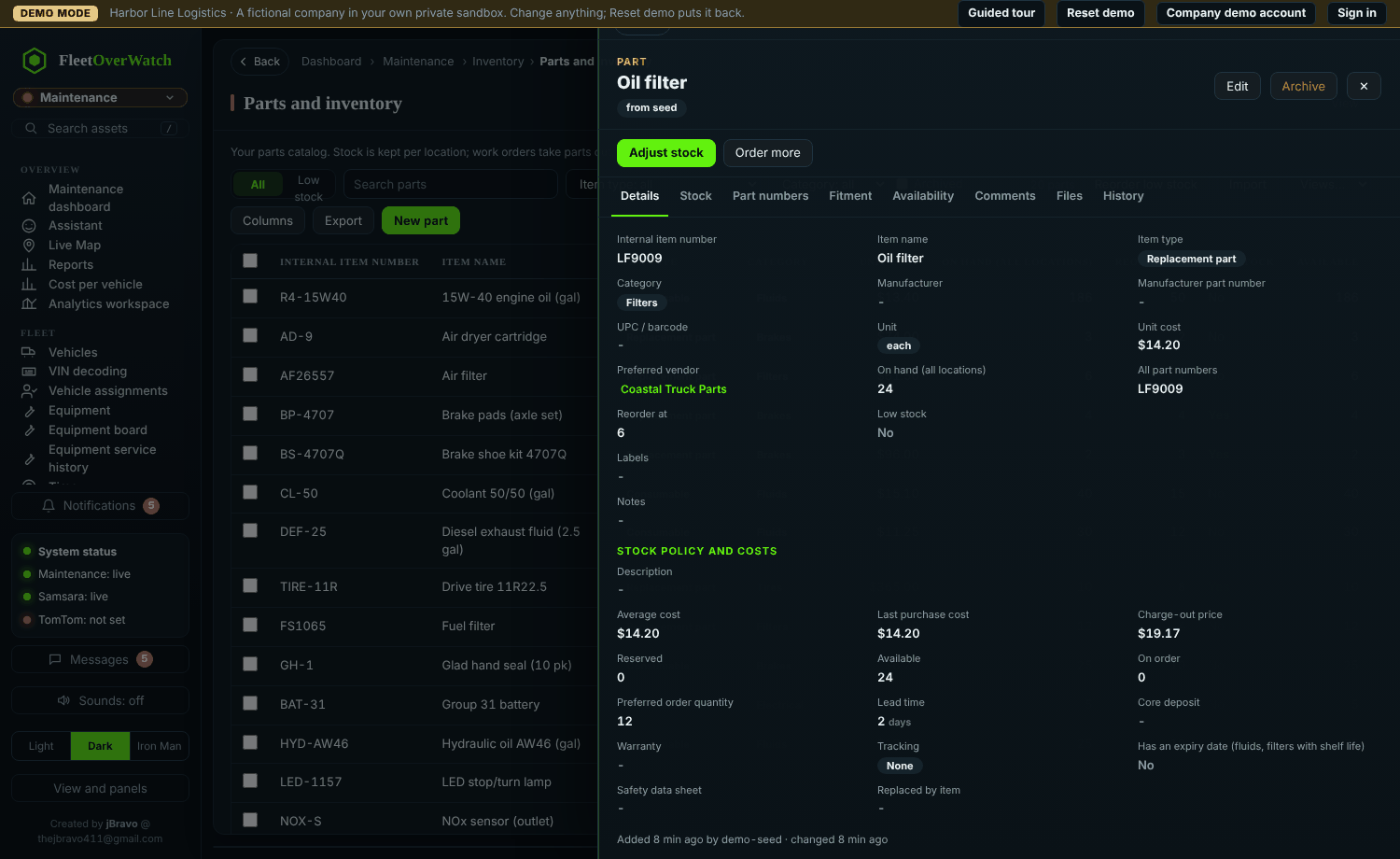
Each part has stock at one or more locations (shop, terminal cage, service truck) with bin and aisle. On hand, reserved (held for work orders and deliveries), available and on order are kept up to date.
Everyday tasks #
- Receive: through the purchase order (Purchasing), or Adjust with the reason Found.
- Transfer between locations: on the part, Adjust, count or transfer > Transfer, choose from and to.
- Adjust stock: choose a reason (count correction, damaged, expired, lost...). Stock may not go below zero unless the setting allows it.
- Cycle count: Maintenance > Cycle counts: count a location's shelves, enter what you found, post it. Differences become adjustments with their value.
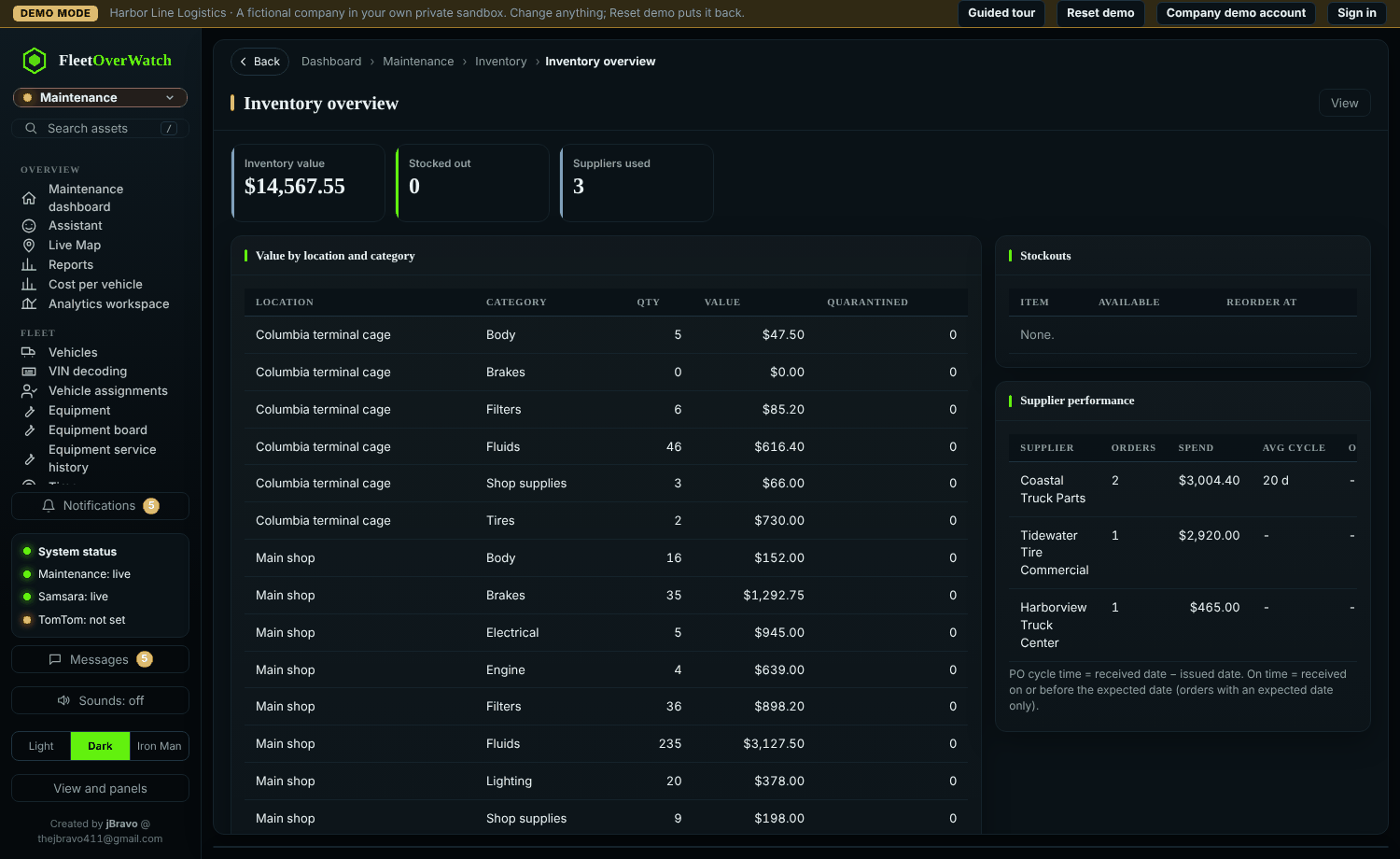
- Low stock: Maintenance > Inventory overview lists parts at or below their reorder point and what is on order.
Every movement is an inventory transaction with who, when, why and the work order or purchase order. Parts used on work orders follow the work order automatically (added, changed, removed, cancelled, deleted), as in Fleetio: see Work orders › Work orders and inventory. The part's Work orders tab lists every work order it is on.
Delete all inventory (administrators) #
At the bottom of Parts and inventory, administrators have a Danger zone with 🗑 Delete all inventory. It is for starting the inventory over, for example before importing a fresh export.
- The first window says how many parts, stock records and inventory moves will go. Tick I understand… and select Continue.
- Type DELETE ALL INVENTORY and your password, then select Delete all inventory.
What is deleted and what is kept:
- Deleted: every part with its part numbers, fitment, stock by location, inventory history, reservations, supplier prices and photos.
- Kept: work orders, purchase orders, invoices, vendor credits and warranties.
- A copy of everything deleted is kept on the server first, and the administrators are told.
↩ Restore deleted inventory (in the same place) puts a copy back. It restores the same parts with the same numbers, and never touches parts added since.
If this does not work #
- "Only N available": the rest is reserved; see the part's reservations.
- Adjustment refused: it would make stock negative.
Inventory overview (4.4.1) #
Maintenance › Inventory overview is the inventory dashboard. Select any number for the parts behind it (search them, open one, Export CSV):
- Stock: stock value (quantity × unit cost, else average or last cost), parts, tracked, in stock, on purchase orders, allocated to work orders.
- Needs attention: at or below the reorder point, out of stock, no price, possible duplicates (the same number written twice), tracked without a reorder point.
- Clean up: not used in 12 months (and the money tied up), never used, in stock without a bin, no picture, no manufacturer.
- Locations (select one for its parts), Reorder these, Highest stock value, Parts used per month, categories and manufacturers.
- Fleetio fields: every column of Fleetio's part export with how many of your parts have it, so an empty column after an import shows at once.
Parts by location — Fleetio's lines (4.4.2) #
Maintenance › Parts by location shows your parts the way Fleetio's part export does: one line per part and location, with Fleetio's 26 columns in Fleetio's order (Last Used, Fleetio ID, Part, Location, Description … Created On, Updated On). Search any part, location, description, Fleetio ID, manufacturer, UPC or bin; select a line to open the part.
Export in Fleetio's format downloads the same lines as a CSV with Fleetio's headings.
- The parts list keeps one line per part (its locations listed together); Parts by location has a line for each location, as Fleetio does.
- On purchase orders, Allocated to work orders, Associated vehicles and Linked service tasks are worked out by the program from its own records.
- An import summary such as "3,429 lines: 2,687 new parts, and 742 lines that are another location of a part" means every line was kept.
- A Fleetio file opened and saved again in Excel (as CSV, Unicode text or .xlsx) imports the same as the original.
Add a part by scanning (4.4.4) #
Parts › New part starts with 📷 Scan to fill in. Scan with 📷 Camera or a handheld scanner, or type a code and press Enter — or skip it and type everything yourself.
- Packaging QR code (Grote EZ-Find and other codes that hold a web address): part number, manufacturer part number, description, manufacturer and picture are filled in from the maker's page.
- Barcode (UPC / EAN): the UPC, and the description, manufacturer, model number and picture when the barcode database knows it.
- A part you already have: you are offered Open it instead of making a copy.
Check what was filled in and select Add. The picture is saved as the part's main picture.
Something here out of date or unclear? Tell your administrator and mention “parts-inventory” and version 4.9.2.